
How to Resolve Apple Watch Screen Issues in 2024
Introduction
Apple Watches provide users quick access to essential information right from their wrist. Yet, when screen issues arise, they can hinder this seamless interaction. Whether it’s a flickering display or a screen that won’t respond, these problems can be bothersome. Fortunately, many of these screen issues have straightforward solutions. This article dives into common Apple Watch screen issues and provides clear, concise steps to assist you in fixing them.
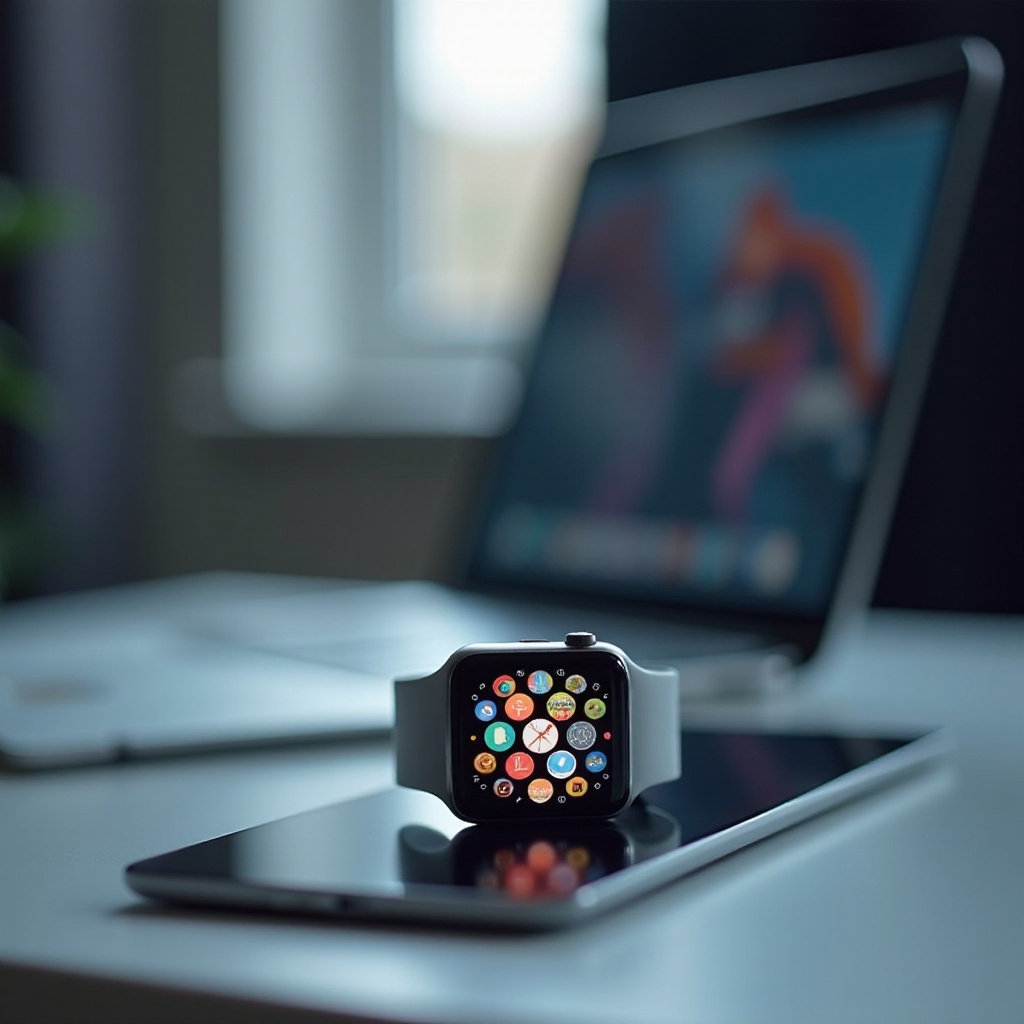
Understanding Apple Watch Screen Problems
Identifying the type of screen problem is vital. It sets the stage for how we approach solving it.
Common Screen Malfunctions
- Unresponsive Screens: This occurs when the screen doesn’t register touch inputs.
- Flickering Displays: Intermittent light variations might disrupt visibility.
- Cracked Screens: Physical impacts can damage the glass, hindering performance.
Software vs. Hardware Issues
Identifying whether the issue is software or hardware is crucial.
- Software Issues: These are often due to glitches, requiring actions like updates or resets.
- Hardware Issues: Result from physical damage or defective components, potentially needing repair or replacement.
Transitioning from understanding the issues, we move on to diagnosing them accurately.
Diagnosing Your Screen Issue
A successful troubleshoot begins with a thorough diagnosis, detecting specific symptoms and utilizing available tools.
Identifying Symptoms
Recognize these common symptoms to identify problems accurately.
- Touchscreen Not Responding: Consider if certain areas of the screen are completely unresponsive.
- Visible Flickers: Are parts of the screen visibly flickering or changing colors repeatedly?
- Cracks and Impact Signs: Look for any visible physical damage that may affect touch technology.
Using Diagnostic Tools
Use Apple’s built-in diagnostic utilities to understand your screen issues better.
- Navigate to ‘Settings’ > ‘General’ > ‘About’ and follow prompts to run diagnostic tests.
Connecting diagnosis to solutions, we move to resolving these identified problems.
DIY Fixes for Apple Watch Screen Issues
If what you discover seems solvable without professional help, here are some steps you can try at home.
Restarting and Resetting Your Device
- Restart: Hold down the side button; slide to power off when prompted, then turn it back on.
- Force Restart: If frozen, press and hold both the side button and Digital Crown until the Apple logo appears.
Adjusting Display Settings
Optimize touch and visual settings directly:
- Visit ‘Settings’ > ‘Brightness & Text Size’; adjust to optimal levels.
- Under ‘General’ > ‘Accessibility’, toggle settings like ‘Reduce Motion’ to test screen response.
Having attempted these fixes, you may need further help if these steps don’t work.
When to Seek Professional Repair
Sometimes, the solution may not be as straightforward and might require professional intervention.
Evaluating the Severity of Damage
Consider professional help if:
- The screen fails to respond even after resets.
- Cracks make entire sections unresponsive or display obstructed.
Understanding Warranty and Service Options
Explore options based on your warranty status:
- Apple Warranty might cover manufacturer faults.
- AppleCare+ offers extended protection, sometimes covering accidental damage.
- Third-Party Services: These can be cost-effective but often void warranty; ensure they use genuine parts.
Prevention always costs less than repairs. That’s why we conclude with maintenance tips.
Preventive Measures to Avoid Screen Problems
Keep your Apple Watch protected and operational by following preventive steps.
Protective Accessories
Invest in screen protectors and cases to shield against accidental drops and scratches.
Software Update Maintenance
Always run the latest WatchOS updates:
- Set automatic updates to stay current with software improvements and security patches.
Conclusion
While Apple Watch screen issues can be inconvenient, they are often manageable with the right approach. By diagnosing correctly and implementing these solutions, you can ensure your device remains in top condition. If needed, don’t hesitate to contact professionals and keep your watch updated to prevent future issues.
Frequently Asked Questions
How do I know if my Apple Watch screen issue is software-related?
Consistent problems despite resets usually suggest software glitches, which updates can fix.
What should I do if my screen is physically damaged?
Seek a professional repair to prevent further damage and restore functionality.
Are third-party repair services reliable for Apple Watch screen fixes?
They’re an option but can void the warranty. Ensure they use genuine parts and check their reviews.