
The Ultimate Guide to Choosing an External Hard Drive for Mac and PC
Introduction
External hard drives have become essential for Mac and PC users alike. As our digital world expands, the need for extra storage, reliable data backup, and seamless data transfer grows. Knowing how to pick the right external drive for both Mac and PC will help you make an informed decision and get the most out of your investment.

Understanding Compatibility
When using an external drive with both Mac and PC, compatibility issues can arise due to different operating system preferences. However, selecting the appropriate file system format can overcome this challenge:
– File System Formats: Macs often use HFS+ while PCs use NTFS. To simplify, exFAT is ideal since it works on both platforms without needing frequent reformatting.
– Reformatting for Cross-Platform Use: If your drive is currently formatted in NTFS or HFS+, consider reformatting to exFAT. Mac users can do this through Disk Utility and Windows users can utilize Disk Management. Always back up important files before reformatting.
Compatibility doesn’t have to be a hurdle. Once you have formatted your drive correctly, you can move on to selecting the right model for your needs in 2024.
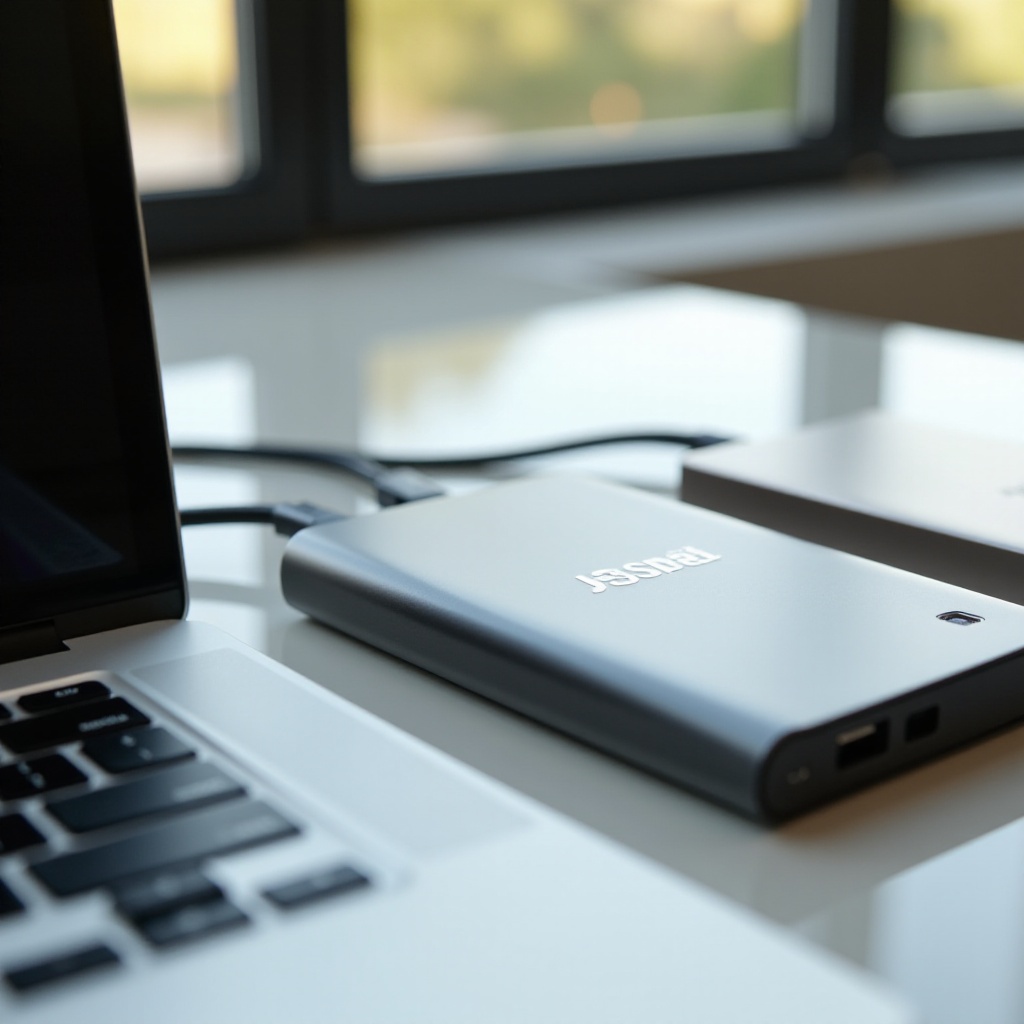
Top External Hard Drives in 2024
The market is flooded with options, making it hard to choose the perfect external hard drive. Below are some exceptional models picked for their performance and reliability:
– Criteria for Selection: Assess drives based on speed, durability, storage capacity, and cost-effectiveness to ensure true value.
– Recommended Models:
1. Seagate Backup Plus Slim: Known for portability and top-notch data protection.
2. Western Digital My Passport: Offers high storage capacity and robust security.
3. Samsung T5 SSD: Ideal for those requiring fast read/write speeds and sleek design.
Knowing the best models makes your choice more straightforward. With options in mind, focus on the features essential to your requirements.
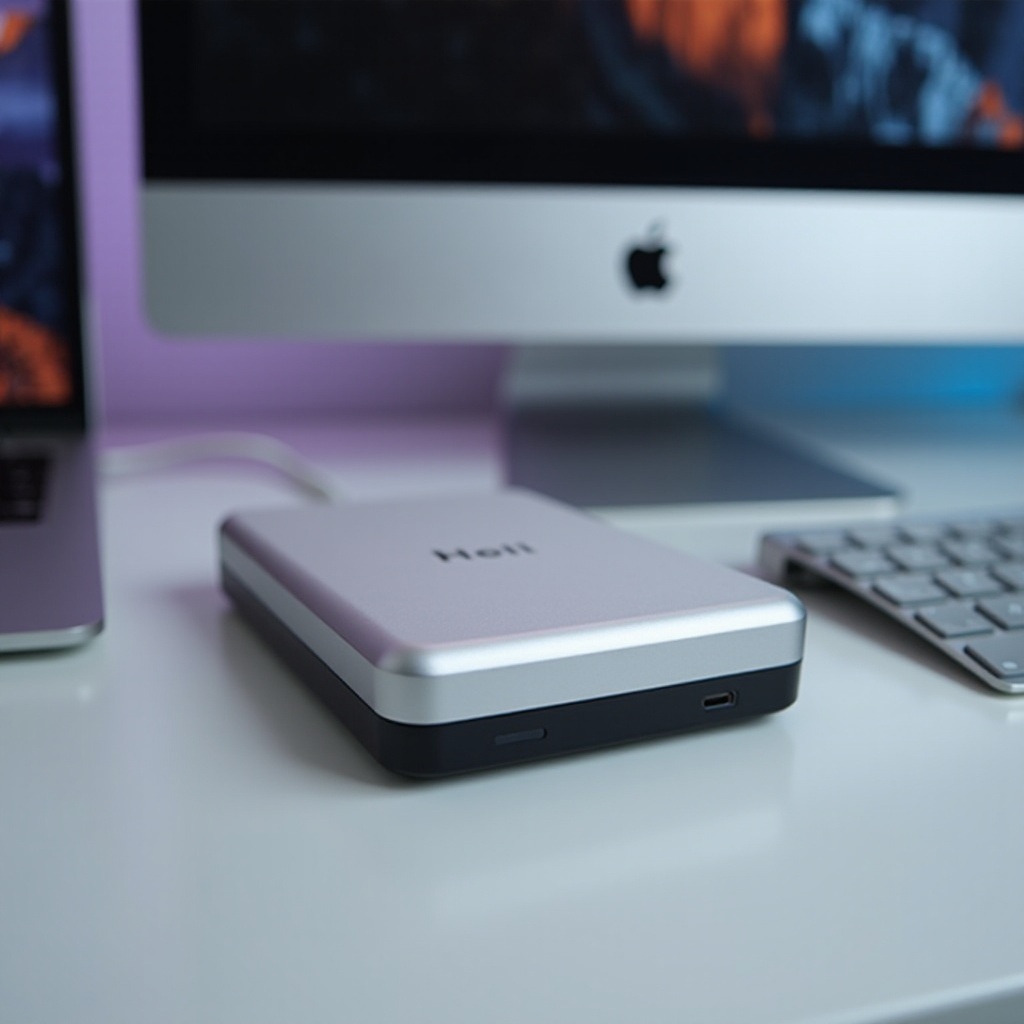
Key Features to Consider
To get the most from your external hard drive, understanding the key features can guide your purchasing decision. Here’s what to consider:
– Drive Capacity and Speed: Size your drive according to your needs. Opt for HDDs for higher capacity at a lower cost, or SSDs for quicker access and improved performance.
– Portability and Design Preferences: If travel is frequent, look for a lightweight, compact model. Rugged drives are perfect for those needing extra durability.
– Security and Data Protection Features: Look for drives offering encryption and password protection to keep your data safe from unauthorized access.
Focusing on these features ensures that you choose a drive perfectly aligned with your specific needs. When you’ve secured your chosen model, it’s time for setup.
Setting Up Your External Hard Drive
Proper setup is critical to maximize the usability of your new external storage. Follow these instructions to get started:
– For Mac Users:
1. Connect your drive to your Mac with the cable provided.
2. Go to Disk Utility from the Applications folder.
3. Select the drive and click ‘Erase’ to format it.
4. Name your drive and choose exFAT under the format list, then confirm.
- For PC Users:
- Attach your drive to your PC.
- Access ‘Disk Management’ via the Start menu.
- Right-click the drive and select ‘Format.
- Opt for exFAT as the format, name the drive, and confirm.
A well-set-up drive is crucial for long-term use. Keep it that way by adhering to some best practices to maintain performance.
Tips for Maximizing Drive Performance
Caring for your drive not only boosts its lifespan but also preserves efficiency. Here’s how to maintain optimal performance:
– Optimizing Data Transfer Rates: Use USB 3.0 or Thunderbolt interfaces for speedy data transfers. Keep the drive idle during large file transfers to prevent overheating.
– Regular Maintenance and Data Backup:
1. Use Mac’s Disk Utility or Windows’ Error Checking to scan for errors regularly.
2. Regularly back up your data to avoid loss in case of drive failure.
Maintaining your drive ensures it operates at peak performance. With these habits, your external hard drive remains a reliable tool for your storage needs.
Conclusion
In choosing the right external hard drive, consider compatibility, features that matter to you, and proper setup. Tailor your choice based on these factors to find a drive that fits seamlessly with your needs across both Mac and PC platforms. Look at this guide as your roadmap to make informed decisions that match your unique storage requirements.
Frequently Asked Questions
What is the best file system format for both Mac and PC?
exFAT is the best choice for cross-compatibility as it allows data reading and writing on both platforms without reformatting.
How do I ensure my data is secure on an external hard drive?
Choose drives with built-in encryption and password protection. Additionally, regularly back up data to safeguard against hardware failure.
Can I use a single external hard drive for both my Mac and PC at the same time?
Yes, you can use a single drive formatted with exFAT to function seamlessly across both Mac and PC systems.