
Why Your Computer Shuts Down While Gaming: Causes and Solutions
Introduction
Unexpected computer shutdowns during gaming sessions can be incredibly frustrating. These sudden power-offs can result in lost data and potential hardware damage, dampening the gaming experience. Whether you play RPGs or fast-paced shooters, understanding what causes these shutdowns and how to fix them is crucial for seamless gaming. This article covers the common reasons for gaming-related shutdowns and practical methods to address them.
Common Causes of Shutdowns
Understanding the root causes of shutdowns is essential for effective troubleshooting. Overheating is a primary culprit. Gaming tasks push your CPU and GPU to their thermal limits, and inadequate cooling can lead to shutdowns as a protective step.
Another usual suspect is an insufficient power supply. Gaming computers demand a strong and reliable power supply unit (PSU). If your PSU fails to supply adequate power or is faulty, it can cause the system to shut down abruptly. Hardware malfunctions like failing RAM or a defective motherboard can also interrupt gaming sessions.
This understanding lays the foundation for diagnosing and solving the problem.
Diagnosing the Problem
To diagnose why your computer shuts down while gaming, start by monitoring system temperatures. Software like Core Temp or HWMonitor can provide real-time temperature insights.
Checking system and application logs for error messages or warnings can also shed light on the issue. In Windows, use the Event Viewer to track down what might be causing these power-offs.
Also, conduct hardware diagnostics with tools like MemTest86 for RAM and Prime95 for CPU stress testing. This comprehensive approach allows you to pinpoint the root cause before proceeding with solutions.
Solutions for Overheating
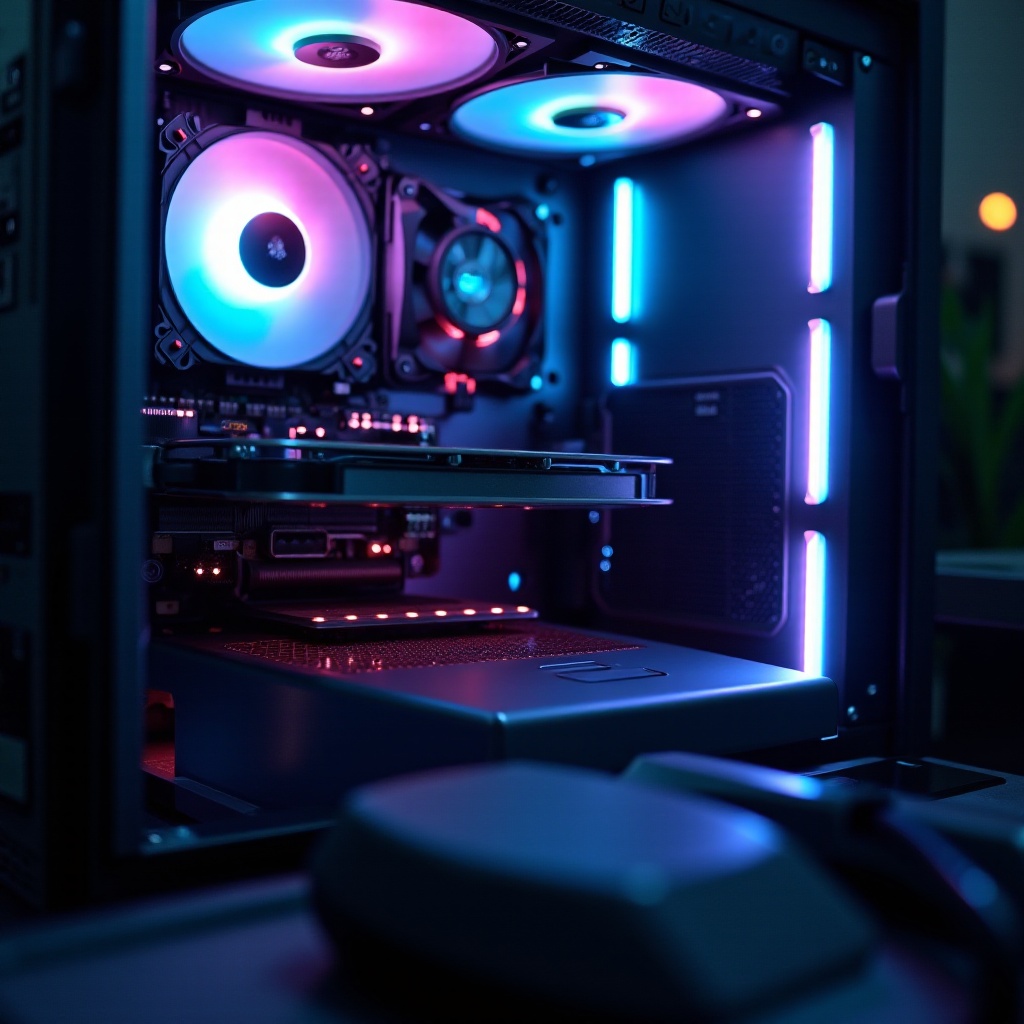
If overheating is identified as the issue, it’s crucial to act quickly. Begin by cleaning and dusting your computer’s internal components, as dust buildup can severely affect cooling efficiency.
Improve airflow by rearranging cables and ensuring fans are unobstructed. Installing additional case fans or upgrading to more efficient ones can significantly reduce system temperatures. For persistent problems, consider a higher-performance cooling solution, such as a liquid cooling system.
These steps will help maintain optimal temperatures during gaming, reducing shutdown risks.
Power Supply Troubleshooting
When overheating is not the issue, evaluate the power supply. A failing or insufficient PSU is often to blame for shutdowns. Use tools like a PSU tester to check its performance.
Ensure all cables are securely connected, as loose connections can impact the power flow. If your PSU underperforms or can’t meet your system’s energy needs, upgrading to a higher wattage model is advisable.
Addressing power supply issues ensures a consistent power flow, crucial for gaming stability.
Addressing Hardware and Software Conflicts
Software conflicts can also lead to unexpected shutdowns. Regular updates for your drivers and software are critical to fix bugs and improve compatibility.
Incompatibility should be resolved by identifying problematic applications and adjusting them accordingly. Booting your system in safe mode can help isolate and address software issues.
Resolving these conflicts will improve overall system stability, preventing shutdowns.
Preventive Measures for Future Stability
Preventive strategies are key for a trouble-free gaming experience. Regular maintenance, such as cleaning your system and monitoring performance, keeps your setup in top shape.
Employ performance-monitoring tools to check system health and modify settings to match gaming demands. Frequent tweaks and updates will prevent disruptions and enhance your gaming sessions.
Continuously maintaining stability ensures gaming remains a pleasurable experience, free from interruptions.
Conclusion
By identifying why your computer shuts down while gaming and implementing strategic solutions, you can enhance your gaming experience significantly. Addressing root causes such as overheating, power supply issues, and software conflicts builds a stable environment for gaming. Should issues persist, consider consulting professionals for further assistance, ensuring your gaming time is spent in enjoyment, not frustration.
Frequently Asked Questions
How can I tell if my computer is overheating?
Monitor your system’s temperatures using software like HWMonitor or Core Temp. If temperatures exceed safe levels, overheating might be the issue.
Can software conflicts really cause shutdowns?
Yes, software conflicts can lead to instability, causing shutdowns. Regularly update all drivers and applications to prevent these issues.
When should I consider upgrading my hardware components?
Consider upgrading if diagnostics reveal hardware issues or if your system struggles with newer games, to ensure better performance and stability.