
Beats Fit Pro Connection Issues: Complete Troubleshooting & Fixes for Stable Wireless Audio
Introduction
Beats Fit Pro deliver powerful sound, strong bass, and a secure fit for workouts and daily use. When they start dropping connections, refusing to pair, or cutting audio in and out, that great experience quickly turns into annoyance. Many people think the earbuds are broken, but often the real problem sits in Bluetooth settings, software, or interference.
The advantage is that most Beats Fit Pro connection issues are fixable at home. With the right steps, you can clear pairing glitches, remove conflicts between devices, and stabilize the wireless link. Instead of guessing, you can follow a clear path that targets the exact issues you see: pairing failures, random disconnects, one earbud not working, or sound not routing correctly.
This guide walks you through practical fixes on iPhone, iPad, Android, Windows laptops, and Mac. You will also learn how to reset your Beats Fit Pro, update firmware, reduce interference, and prevent future problems. Move through each section in order or jump straight to the device you use most. By the end, your earbuds should feel reliable again, whether you are at the gym, at your desk, or on the move.
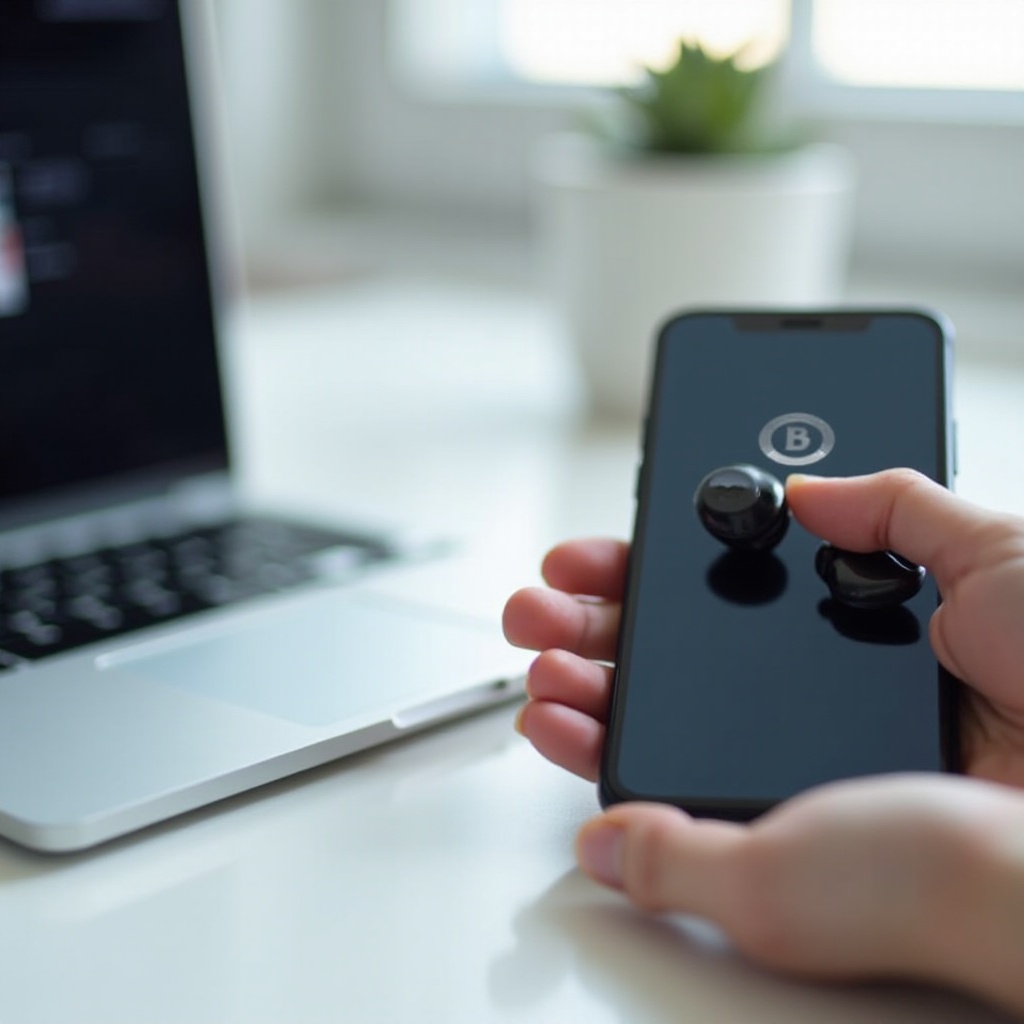
Understanding Beats Fit Pro Connection Issues
Before you start changing settings, it helps to understand what counts as a connection issue and what usually causes it. Different symptoms point to different fixes. Once you can name the problem clearly, you will waste less time trying random solutions that do not match your actual issue.
Typical Symptoms of Beats Fit Pro Connection Problems
Beats Fit Pro connection issues can show up in many ways:
- The earbuds do not show up at all in the Bluetooth device list on your phone or computer.
- They show as ‘Connected’, but you do not hear any sound.
- Audio cuts in and out while you walk, turn your head, or move around.
- Only one earbud connects or plays sound while the other stays silent.
- The earbuds disconnect randomly during calls, meetings, or workouts.
- Pairing fails with messages such as ‘Could not pair’, ‘Pairing rejected’, or ‘Connection unsuccessful’.
When you know exactly which of these symptoms you see, you can match them to the right steps later in this article. For example, ‘Connected but no sound’ is often a sound output setting issue, while ‘Not showing up at all’ points to pairing mode or Bluetooth problems.
Why Bluetooth Earbuds Struggle With Stability
Bluetooth is short-range radio. It is convenient and low power, but it is also sensitive. Beats Fit Pro send audio over a 2.4 GHz wireless link that many other devices use too. Several factors can weaken that link:
- Too many nearby Bluetooth or Wi-Fi devices using the same frequency.
- Walls, your body, metal surfaces, or bags blocking the signal.
- Outdated firmware on the earbuds or old software on your phone or computer.
- Conflicts when the earbuds try to switch between multiple paired devices.
When you see Beats Fit Pro connection issues, you are often seeing the result of these hidden pressures on the wireless link. Understanding this helps you make sense of the quick checks and deeper fixes in the next sections.
Quick Fixes to Try First
Before you reset devices or dive into advanced settings, it is smart to work through a few simple checks. Many Beats Fit Pro connection issues disappear once the basics are correct. These steps take only a few minutes and often solve the problem without more complex changes.
Check Battery Levels and Charging Case
Low or uneven battery charge can make Bluetooth unstable and cause random disconnects.
- Place both earbuds firmly in the charging case and close the lid for a few seconds.
- Open the lid near your iPhone or use the Beats app on Android to check battery levels.
- If either earbud or the case is low, charge them for at least 15–20 minutes.
- Avoid heavy use when the battery is very low, as this is when dropouts tend to happen.
A solid charge ensures the earbuds have enough power to maintain a strong, stable signal.
Confirm Bluetooth Is Enabled and Discoverable
It is easy to overlook basic Bluetooth settings, especially if you switch modes or devices often.
- On iPhone or iPad: Go to Settings > Bluetooth and make sure the switch is on.
- On Android: Open Settings > Connections > Bluetooth (path may vary) and turn it on.
- On Windows: Open Settings > Bluetooth & devices and confirm Bluetooth is enabled.
- On Mac: Open System Settings > Bluetooth and check that Bluetooth is on.
If your device uses Airplane Mode, turn it off or manually re-enable Bluetooth. A simple toggle off and back on can also clear short-term Bluetooth glitches.
Reduce Distance and Physical Obstacles
Bluetooth range is limited, and obstacles weaken the signal.
- Keep your phone or laptop within a few feet of the Beats Fit Pro when pairing or testing.
- Avoid thick walls, metal shelves, and large appliances between you and your device.
- If your phone is in a bag, move it to a pocket on the same side as your primary earbud.
If the connection becomes stable when you are closer and in open space, you likely have a range or interference issue. The later sections on interference and multi-device use will help with that. First, let us look at how to fix problems on specific platforms, starting with iPhone and iPad.
How to Fix Beats Fit Pro Connection Issues on iPhone and iPad
Beats Fit Pro work especially well with Apple devices, but pairing records and software bugs can still cause trouble. On iPhone and iPad, most connection issues come down to bad Bluetooth entries, missing firmware updates, or features like automatic switching behaving in unexpected ways.
Forget and Re-Pair Beats Fit Pro in iOS Settings
A fresh pairing often clears stubborn glitches between iOS and your earbuds.
- Open Settings > Bluetooth on your iPhone or iPad.
- Find Beats Fit Pro in the device list and tap the small ‘i’ icon next to it.
- Tap Forget This Device and confirm.
- Put both earbuds in the case, open the lid, and hold the case button until the LED flashes.
- When the pairing card appears on your iPhone or iPad screen, tap Connect and follow the prompts.
This removes any corrupted pairing data and replaces it with a clean connection profile.
Reset Beats Fit Pro Using the Charging Case
If forgetting and re-pairing does not help, perform a reset on the earbuds themselves.
- Place both Beats Fit Pro earbuds in the charging case and leave the lid open.
- Press and hold the system button on the case for about 15 seconds.
- Release the button when the LED flashes red and then white.
- On your iPhone or iPad, remove any old ‘Beats Fit Pro’ entries from Bluetooth settings.
- Put the earbuds back into pairing mode and connect again.
This reset clears internal settings that might be causing connection issues while keeping your device data intact.
Update iOS and Beats Firmware for Better Stability
Outdated software can trigger dropouts, pairing failures, and other Bluetooth bugs.
- On your iPhone or iPad, go to Settings > General > Software Update and install the latest iOS or iPadOS version.
- Connect your Beats Fit Pro to your device and keep them nearby.
- Plug your iPhone or iPad into power and connect to Wi-Fi.
- Leave the earbuds connected for several minutes. Firmware updates for Beats Fit Pro install automatically when conditions are right.
After updating, test your earbuds again for stability. If you also use Android devices, it is important to ensure both platforms are set up correctly to avoid conflicts.
How to Fix Beats Fit Pro Connection Issues on Android
Android phones and tablets come from many brands, and each may handle Bluetooth slightly differently. Beats Fit Pro connection issues on Android usually involve pairing conflicts, a cluttered Bluetooth cache, or missing firmware updates that the Beats app can help deliver.
Remove and Re-Add Beats Fit Pro in Bluetooth Settings
Start with a clean pairing record on your Android device.
- Open Settings > Bluetooth or Connected devices, depending on your phone.
- Find Beats Fit Pro in the paired devices list.
- Tap the settings icon next to it and choose Forget or Unpair.
- Put the earbuds in the case, open the lid, and hold the button until the LED flashes.
- On your phone, tap Pair new device and select Beats Fit Pro from the list.
This simple step clears the old connection profile and often removes pairing-related errors.
Clear Bluetooth Cache and Reset Network Connections
If Android’s Bluetooth system has built-up data, it can cause strange behavior.
Typical steps (exact names may vary by brand):
- Go to Settings > Apps and tap the menu to show system apps.
- Find entries named Bluetooth or Bluetooth Share.
- Open the app info, tap Storage, then tap Clear Cache and Clear Data.
- Optionally, go to Settings > System > Reset options and choose Reset Wi-Fi, mobile & Bluetooth. Note that this removes all saved Wi-Fi and Bluetooth devices.
- Restart your phone and pair your Beats Fit Pro again.
Clearing the Bluetooth stack removes hidden conflicts that a simple toggle cannot fix.
Use the Beats App for Firmware and Advanced Options
The Beats app on Android gives you more control over your Beats Fit Pro and can improve reliability.
- Install the Beats app from the Google Play Store.
- Open the app with your Beats Fit Pro powered on and connected.
- Follow the prompts to add the earbuds to the app if needed.
- Check within the app for any available firmware updates.
- Review settings like automatic ear detection, call controls, and noise control modes.
Keeping firmware current and settings tuned can help reduce dropouts and improve pairing success. If you often switch between your phone and laptop, the next part focuses on Windows.
Solving Beats Fit Pro Connection Issues on Windows Laptops and PCs
Windows PCs use many different Bluetooth chips and drivers, so connection behavior can vary a lot between machines. Beats Fit Pro connection issues on Windows often relate to driver problems, incorrect sound output selection, or incomplete pairing.
Pairing Beats Fit Pro in Windows Bluetooth & Devices
Make sure Windows pairs with your earbuds correctly from the start.
- Put your Beats Fit Pro in the case, open the lid, and hold the button until the LED flashes.
- On Windows, open Settings > Bluetooth & devices and ensure Bluetooth is on.
- Click Add device.
- Choose Bluetooth, then select Beats Fit Pro from the list when it appears.
- Wait for Windows to finish connecting and confirm that the earbuds show as paired and connected.
If your PC cannot discover the earbuds, move them closer, turn Bluetooth off and back on, and try again.
Fixing ‘Connected but No Sound’ on Windows
Sometimes Windows connects to Beats Fit Pro but continues to send audio somewhere else.
- Right-click the speaker icon in the taskbar and select Sound settings.
- Under Output, choose Beats Fit Pro as the default audio device.
- If you want to use the built-in microphone, under Input select the Beats Fit Pro as the default input.
- Check that system volume is turned up and that the app you are using (browser, media player, or meeting tool) is not muted.
After this, test with a simple audio source like a music track or a video to confirm that sound routes correctly.
Updating Bluetooth Drivers and Audio Settings
Old or buggy drivers often cause random dropouts, lag, or failed connections.
- Right-click the Start button and open Device Manager.
- Expand the Bluetooth section and find your Bluetooth adapter.
- Right-click it and select Update driver, then choose to search automatically.
- Visit your laptop or motherboard manufacturer’s support page for the latest Bluetooth and chipset drivers if Windows does not find any.
- Restart your PC after installing updates and test the earbuds again.
If you also use a Mac, or if automatic switching between Apple devices causes confusion, the next section explains how to handle connection issues on macOS.
Fixing Beats Fit Pro Connection Issues on Mac and MacBook
Mac and MacBook devices usually integrate well with Beats Fit Pro, especially when you sign in with the same Apple ID used on your iPhone. However, features like automatic switching and Handoff can sometimes pull audio away from the device you want to use. Misconfigured Bluetooth preferences can also lead to unstable connections.
Pairing Through macOS Bluetooth Preferences
A deliberate, manual pairing makes the connection more predictable.
- Put your Beats Fit Pro into pairing mode in the open case until the LED flashes.
- On your Mac, go to System Settings > Bluetooth.
- Wait for Beats Fit Pro to appear under nearby devices.
- Click Connect and wait until the status shows as connected.
- Open System Settings > Sound and select Beats Fit Pro as the output device.
If the earbuds fail to connect, remove them from the list of devices, reset them in the case, and try pairing again.
Managing Automatic Switching Between Apple Devices
Automatic switching can make audio jump from your Mac to your iPhone or iPad without warning, which can feel like connection issues.
- On your Mac, open System Settings > Bluetooth.
- Click the information icon next to Beats Fit Pro.
- Look for an option similar to Connect to This Mac and set it to When Last Connected to This Mac rather than automatic.
- On your iPhone and iPad, go to Settings > Bluetooth, tap the ‘i’ icon next to Beats Fit Pro, and adjust connection options if available.
This change reduces the chance that your earbuds suddenly switch to another Apple device in the background.
Resolving Dropouts and Lag During Calls and Streaming
Lag, stutter, and dropouts on Mac often arise when several wireless devices and apps compete at once.
- Turn off other Bluetooth accessories you are not using, like spare keyboards, speakers, or old earbuds.
- Move Wi-Fi routers, USB hubs, and external drives a little farther away from your Mac if they sit very close.
- Close unused apps that access the microphone or camera during calls.
If you find that only one earbud keeps failing, you may have a charge or sensor issue rather than a Mac problem. That leads into the next section on one-earbud troubles.
One Earbud Not Connecting or Cutting Out
Sometimes you will find that only the left or right Beats Fit Pro earbud disconnects, will not charge, or will not play sound. This kind of problem is common with true wireless earbuds and usually involves how the earbuds sync with each other, how they charge, or how their sensors detect your ears.
How Beats Fit Pro Handle Individual Earbud Connections
Each Beats Fit Pro earbud can work on its own, which is convenient for calls or when you want to keep one ear open. But that flexibility can also cause confusion:
- One earbud often acts as the primary connection to your device.
- The other earbud syncs with the primary one rather than directly with your phone or laptop.
- If that sync breaks, you might get sound in one ear while the other disconnects or stays silent.
Knowing this helps you understand why resetting both earbuds together and charging them fully is so important.
Ensuring Both Earbuds and Case Are Properly Charged
A low or uneven charge can make one earbud behave as if it is faulty.
- Place both earbuds in the charging case and press gently to be sure they sit on the contacts.
- Connect the case to power and check that the LED indicator lights up.
- Leave everything charging for at least 30 minutes.
- After charging, reconnect the Beats Fit Pro to your device and play a simple track to test both sides.
If the same earbud always drops or has no power, the issue might be with the contacts or sensors.
Cleaning Sensors and Re-Syncing Left and Right Earbuds
Dirt, sweat, or earwax on the charging pins and sensors can stop an earbud from charging or being detected correctly.
- Gently wipe the metal charging contacts on each earbud and inside the case using a dry, soft cloth or cotton swab.
- Avoid using liquids, alcohol, or abrasive materials.
- After cleaning, place both earbuds in the case, close the lid, wait 30 seconds, then open it.
- Perform a reset by holding the case button until the LED flashes red and then white.
- Put the earbuds in pairing mode and connect them again.
If both earbuds still misbehave after cleaning and resetting, deeper troubleshooting and testing on other devices will help you decide whether the hardware needs service.
Advanced Troubleshooting for Persistent Beats Fit Pro Connection Issues
If you have tried the basic and device-specific steps and still see the same problems, it is time for more advanced checks. These steps help you isolate whether the issue lies in the Beats Fit Pro themselves, the wireless environment, or your phone or computer.
Performing a Full Factory Reset on Beats Fit Pro
A full reset wipes all internal pairing and configuration data from the earbuds.
- Place both Beats Fit Pro earbuds in the charging case with the lid open.
- Press and hold the system button on the case for about 15 seconds.
- Release the button when the LED flashes red and then white.
- On all your devices (phones, tablets, computers), remove any saved ‘Beats Fit Pro’ entries from their Bluetooth lists.
- Pair the earbuds first with the device you use most, then add them to other devices one by one.
This gives your Beats Fit Pro a fresh start in your Bluetooth ecosystem and often clears issues that linger after lighter resets.
Checking for Wireless Interference and Crowded Signals
A busy wireless environment can make even healthy earbuds seem faulty.
- Turn off or move away from extra Bluetooth devices, such as other earbuds, speakers, and smartwatches.
- Step away from crowded areas like busy offices, shared gyms, or public transport hubs and test again.
- If your Wi-Fi router sits right next to your laptop or desktop, move the router or the computer a short distance away.
If your Beats Fit Pro work much better in a calmer wireless environment, interference is a major factor. You can then adjust how and where you use them to reduce problems.
Testing Beats Fit Pro on Multiple Devices to Isolate the Problem
To decide whether the earbuds or your device need more help, compare behavior across several devices.
- Connect your Beats Fit Pro to another phone or computer that you know works well with Bluetooth.
- Use them for at least 15–20 minutes with music, video, and if possible, a short call.
- If they work perfectly on the other device, your original phone or laptop is likely the source of the issue.
- If the same disconnects and dropouts appear on every device, even after a reset, the earbuds may have a hardware problem.
With this information, you can either adjust your devices further or move toward support options. Before contacting support, it makes sense to lock in good habits that prevent future issues.
Preventing Future Beats Fit Pro Connection Problems
Once you have fixed your immediate Beats Fit Pro connection issues, a few simple habits can keep your earbuds running smoothly. Prevention is easier than constant troubleshooting and saves a lot of frustration over the long term.
Best Practices When Using Multiple Devices
Beats Fit Pro can pair with many devices, but too many active pairings can confuse them.
- Keep the list of paired devices short and remove phones, tablets, or laptops you no longer use.
- When you switch from one device to another, turn off Bluetooth on the device you are not using.
- Avoid connecting to more than one nearby device at the same time while you are in the middle of a call or meeting.
These practices help your Beats Fit Pro connect to the right device every time and reduce sudden switches.
Keeping Firmware and Operating Systems Updated
Software updates often contain important Bluetooth and audio fixes.
- Regularly check for iOS, Android, Windows, and macOS updates and install them.
- Connect your Beats Fit Pro to your main phone and keep them nearby during charging so firmware updates can install.
- Use the Beats app on Android to confirm firmware status and apply updates when available.
Staying current lowers the chances that known bugs or compatibility issues affect your earbuds.
Storage, Cleaning, and Handling Habits for Reliable Performance
Good physical care helps your Beats Fit Pro maintain solid connections and charge correctly.
- Always store your earbuds in their charging case when not in use.
- Keep the case dry and away from extreme heat or cold.
- Clean the earbuds and case contacts gently if you notice dirt or charging problems.
- Avoid dropping or crushing the case, as physical damage can affect internal components and wireless performance.
If you still struggle with connection problems after adopting these habits and running through all the fixes, it may be time to involve Apple or Beats support.
When to Contact Apple or Beats Support
Most software-related Beats Fit Pro connection issues respond to the steps in this guide. However, hardware defects, severe internal failures, or damage may require professional attention. Knowing when to escalate saves time and helps you get back to reliable listening sooner.
Signs of Hardware Failure vs. Software Glitches
Certain symptoms suggest that the issue may not be fixable through settings alone:
- One earbud never charges or powers on, even after cleaning contacts and resetting.
- The case LED does not light up when plugged in, even with different cables and chargers.
- The earbuds disconnect across multiple devices and locations after full resets and updates.
- Visible damage, such as cracks, severe impact, or signs of water exposure.
If you see several of these signs together, it is likely time to seek repair or replacement.
Checking Warranty, Proof of Purchase, and Serial Number
Before you reach out to Apple or Beats support, gather some basic information.
- Find the serial number for your Beats Fit Pro. You can usually see it inside the charging case or in your device’s Bluetooth settings.
- Locate your proof of purchase from an authorized retailer or online store.
- Use Apple’s support website to check the coverage and warranty status using the serial number.
Having this information ready helps support staff process your case more quickly and accurately.
What to Expect From Service, Repair, or Replacement
When you contact Apple or Beats support about Beats Fit Pro connection issues:
- You will answer a few questions to confirm you have tried basic troubleshooting.
- Support may offer mail-in repair, in-store assessment, or express replacement, depending on your location and coverage.
- If your Beats Fit Pro are still under warranty and not damaged by misuse, you may receive repair or replacement at little or no cost.
If your earbuds are out of warranty, support can still explain paid options so you can decide whether repair or a new pair makes more sense.
Conclusion
Beats Fit Pro connection issues are frustrating, but they do not always mean your earbuds are failing. Most problems come from simple causes: low battery, bad pairing entries, outdated software, wireless interference, or confusion between multiple devices. By working through quick checks first and then applying targeted steps for iPhone, Android, Windows, and Mac, you can solve most issues on your own.
Resetting your Beats Fit Pro, cleaning the contacts, and limiting how many devices they connect to at once all help create a more stable experience. Regular firmware and system updates add another layer of protection against dropouts, lag, and pairing failures.
If problems persist across several devices and locations, and especially if you see signs of hardware trouble, contacting Apple or Beats support is the right move. With a careful, step-by-step approach and the guidance in this 2024 fix guide, you can restore your Beats Fit Pro to reliable daily use or make an informed choice about repair or replacement.
Frequently Asked Questions
Why do my Beats Fit Pro keep disconnecting even after resetting them?
If your Beats Fit Pro still disconnect after a reset, the cause is often wireless interference or a problem with the device, not the earbuds. Turn off other nearby Bluetooth devices, test in a different location, and update your phone or computer software and Bluetooth drivers. Remove old pairings and connect the earbuds again. If they drop on several devices in multiple places, the hardware may be faulty and you may need Apple or Beats support.
Can Beats Fit Pro connection issues be fixed without contacting support?
Most Beats Fit Pro connection issues can be fixed without support. You can reset the earbuds in their case, forget and re-pair them on each device, clear Bluetooth caches, and update firmware and operating systems. You can also adjust features like automatic switching and audio output settings. These steps solve many pairing failures and dropouts. Support usually becomes necessary only when these methods fail across multiple devices or when there are clear signs of hardware damage.
Are Beats Fit Pro connection issues worse with non-Apple devices?
Beats Fit Pro work best within the Apple ecosystem, but they can be stable on Android and Windows as well. Connection issues may seem more common on non-Apple devices because they use different Bluetooth chips and drivers. Using the Beats app on Android, keeping firmware up to date, and following proper pairing steps on Windows and Mac help reduce problems. With the right setup, many users enjoy reliable Beats Fit Pro performance on both Apple and non-Apple devices.