
Raycon Everyday Earbuds Pairing Mode: Complete 2024 Guide
Introduction
Raycon Everyday Earbuds feel great to use when they connect quickly and stay stable. When pairing fails, you get silence, audio cutting out, or only one earbud working. Understanding how Raycon Everyday Earbuds pairing mode works is the key to avoiding those problems and enjoying reliable sound on your phone, laptop, TV, or console.
This guide explains in clear steps what pairing mode is, how to read the LED indicators, and how to put your Raycon Everyday Earbuds into pairing mode on demand. You will see exact instructions for iPhone, Android, Windows, macOS, smart TVs, and gaming devices.
You will also learn how to switch between multiple devices without constant resets and how to solve common issues like ‘Raycon not showing in Bluetooth’ or ‘connected but no sound’. By the end, you will know how to use Raycon Everyday Earbuds pairing mode with confidence throughout 2024 and beyond.
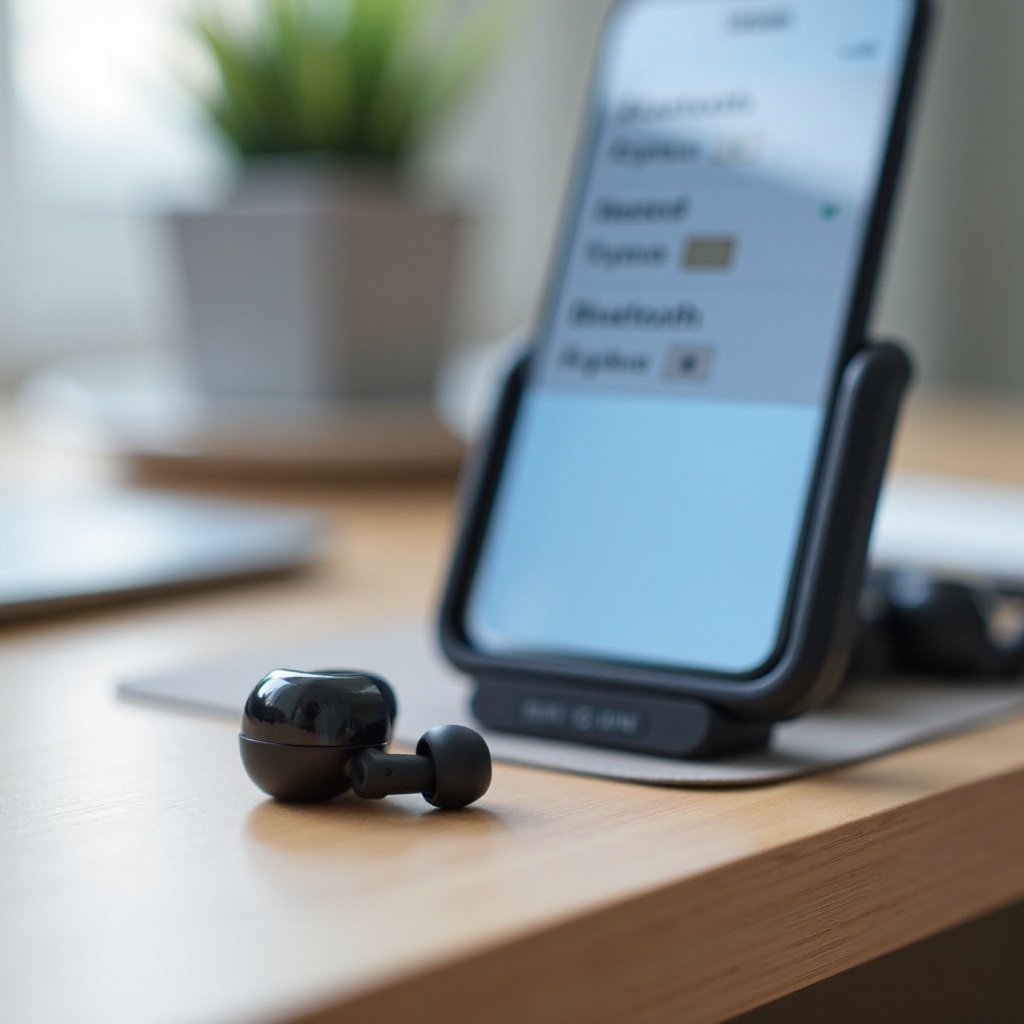
What Is Pairing Mode on Raycon Everyday Earbuds?
Pairing mode is the special state your Raycon Everyday Earbuds enter when they are ready to connect to a new device over Bluetooth. When the earbuds are in pairing mode, your phone, tablet, computer, or TV can detect them and create a secure wireless link. Without pairing mode, new devices cannot see or connect to your earbuds at all.
For most users, pairing mode first appears the moment they remove both earbuds from the case after charging them. The earbuds then broadcast a signal that your device can pick up in its Bluetooth settings. Later, you may need to manually put the earbuds into pairing mode again when you change devices, reset them, or face connection problems.
Pairing mode matters because it gives you control over how and where your earbuds connect:
- New devices can only connect when the earbuds are in pairing mode.
- You avoid random reconnects to old devices you no longer want to use.
- You can fix many connection issues simply by reentering pairing mode.
With the concept of pairing mode clear, the next step is learning how to read the LED indicators and controls. These lights and touches are your main clues that the earbuds are in the correct state.
Understanding the LED Indicators and Controls
The LED indicators on your Raycon Everyday Earbuds and charging case tell you what the earbuds are doing at any moment. Once you understand the color and blinking patterns, you can quickly tell whether they are charging, pairing, connected, or in error.
LED light patterns that show pairing mode is active
When Raycon Everyday Earbuds are in pairing mode, you will usually see a blinking pattern on one or both earbuds. While the exact look can differ slightly by revision, most Raycon Everyday Earbuds follow these general rules:
- Rapid blinking on one earbud: The primary earbud is in active pairing mode and searching for a device.
- Rapid blinking on both earbuds: Both sides are searching and syncing before connecting.
- Blinking shortly after removal from the case: The earbuds are trying to reconnect to the last known device and are briefly in pairing or reconnect mode.
If you see no blinking at all after removing the earbuds from the case, they might not be in pairing mode and may need to be reset or charged.
What different colors and blinking speeds mean
Color and speed give more detail about what is happening:
- Blue rapid blinking: Often indicates the earbuds are in pairing mode and ready to connect.
- Red and blue alternating blinking: Commonly means the earbuds are in full discovery mode for a new device.
- Slow blue blinking: Usually shows the earbuds are connected and on standby.
- Solid red or slow red blinking: Typically reflects low battery or charging in progress.
If you see irregular or very faint lights, check battery level and make sure the earbuds are seated correctly in the case.
Buttons and touch controls related to pairing
Raycon Everyday Earbuds use small buttons or touch surfaces to control pairing and resets. These controls often let you force pairing mode even if automatic methods fail:
- Long press on both earbuds: Often triggers a full reset or re-pairing sequence.
- Removing both earbuds from the case at the same time: Usually starts automatic pairing or reconnection.
- Placing the earbuds back in the case and closing the lid: Ends pairing, powers them down, and prepares them for the next session.
Always check your specific Raycon quick-start guide for exact gestures, but most Everyday models follow this basic logic. Once you can read the LED signals and use the controls, you are ready to put the earbuds into pairing mode whenever you need.
How to Put Raycon Everyday Earbuds in Pairing Mode
Now that you know what the lights and controls mean, it is time to use them. The process for entering pairing mode is slightly different for first-time setup versus pairing with a new device later.
First-time setup and automatic pairing
For your very first setup with Raycon Everyday Earbuds, follow these steps:
- Charge the case and earbuds until the case LED shows enough battery.
- Open the charging case lid and make sure both earbuds are seated properly.
- Remove both earbuds from the case at the same time.
- Watch for rapid blinking LEDs, usually blue or red/blue, on at least one earbud.
- On your phone or other device, open Bluetooth settings.
- Look for a device name like ‘Raycon Everyday Earbuds’ in the available devices list.
- Tap that entry to connect and confirm any pairing prompt that appears.
For many users, this first automatic pairing is quick and smooth. Once completed, the earbuds should reconnect automatically to that device when you remove them from the case in the future.
Manually entering pairing mode from the case
If you want to pair the earbuds with a different device after the first setup, you may need to force pairing mode:
- Place both earbuds back into the charging case and close the lid.
- Wait a few seconds, then open the lid.
- Remove both earbuds again and hold them close together.
- If they do not start blinking quickly, press and hold the touch surface or button on each earbud for a few seconds until you see a rapid blinking pattern.
- On the new device, open Bluetooth settings and select the Raycon earbuds from the list.
This manual method is very useful when the earbuds try to reconnect to an old device and ignore the new one.
Resetting the earbuds before pairing
If pairing mode simply does not work or the earbuds behave unpredictably, a reset usually helps:
- Put both earbuds into the charging case and ensure they are charging.
- With the lid open, press and hold the touch surfaces or buttons on both earbuds for around 8–10 seconds, or until you see a distinct flash pattern that signals a reset.
- Close the lid and wait a few seconds.
- Open the lid, remove both earbuds, and watch for fresh pairing mode blinking.
- Go to your device settings and pair them like new.
Once you can reliably enter pairing mode, you are ready to connect the earbuds to your everyday devices, starting with phones and tablets.
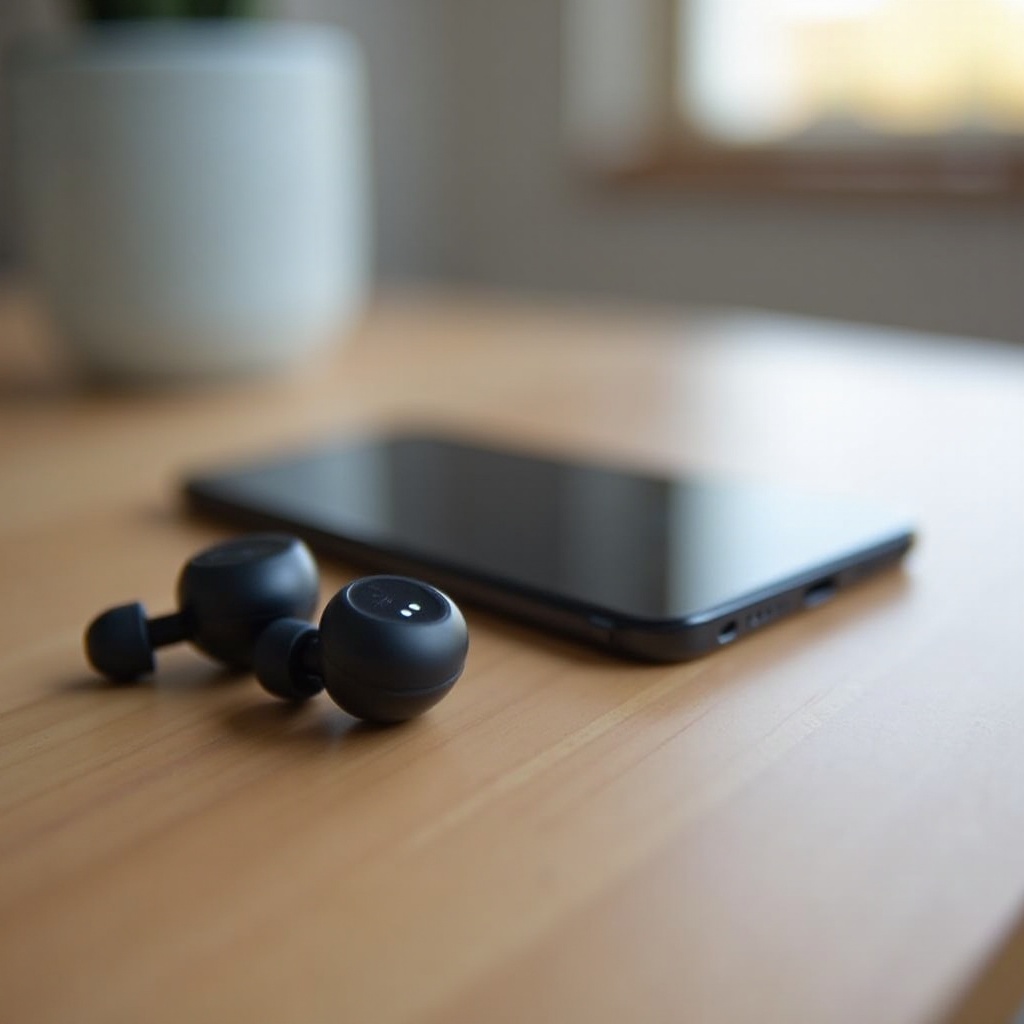
Pairing Raycon Everyday Earbuds with Phones and Tablets
Most users rely on Raycon Everyday Earbuds for music, calls, and streaming on mobile devices. iOS and Android both support Bluetooth headphones well, but their menus look a bit different. The basic steps stay the same.
Pairing with iPhone and iPad (iOS)
To pair Raycon Everyday Earbuds with an iPhone or iPad:
- Put the earbuds into pairing mode using the steps above.
- Open the ‘Settings’ app on your iPhone or iPad.
- Tap ‘Bluetooth’ and make sure Bluetooth is turned on.
- Wait a moment under ‘Other Devices’ for your Raycon Everyday Earbuds to appear.
- Tap the earbuds’ name to start pairing.
- Wait for the status to change from ‘Connecting’ to ‘Connected’.
If the earbuds do not appear, toggle Bluetooth off and back on, then check again. Keep the earbuds close to the device while pairing.
Pairing with Android phones and tablets
On Android, the exact labels depend on your phone brand, but the process is similar:
- Put the Raycon earbuds into pairing mode.
- Open ‘Settings’ on your Android device.
- Tap ‘Connected devices’ or ‘Bluetooth’.
- Turn on Bluetooth if it is off.
- Tap ‘Pair new device’ or ‘Add device’.
- Choose your Raycon Everyday Earbuds from the list.
- Confirm the pairing request.
If you see more than one Raycon entry, remove old or inactive entries first. You can do this under ‘Previously connected devices’ or ‘Paired devices’ by tapping the settings icon and selecting ‘Forget’.
Confirming a successful connection on mobile devices
After pairing, confirm that your earbuds are actually handling audio:
- Check that the Bluetooth status shows ‘Connected’ for your Raycon earbuds.
- Play music or a video and confirm that sound comes through the earbuds, not the phone speaker.
- Use the device volume buttons to adjust the level; the earbuds should respond.
- During a call, make sure the call audio output is set to your Raycon earbuds.
Once the connection is stable on your phone or tablet, you can move on to pairing Raycon Everyday Earbuds with laptops and computers, which often involve a few more settings steps.
Pairing Raycon Everyday Earbuds with Laptops and Computers
Connecting Raycon Everyday Earbuds to Windows or macOS lets you use them for work calls, video meetings, gaming, and streaming. Computers give you more options, but they also introduce more chances for misconfiguration. Careful setup here will save you time later.
Connecting to Windows 10/11 PCs
On a Windows 10 or 11 laptop or desktop, follow these steps:
- Put your Raycon Everyday Earbuds into pairing mode.
- Click the ‘Start’ menu and open ‘Settings’.
- Click ‘Devices’ or ‘Bluetooth & devices’, depending on your Windows version.
- Turn on Bluetooth if it is off.
- Click ‘Add device’, then choose ‘Bluetooth’.
- Wait for Windows to find your Raycon Everyday Earbuds and click their name.
- Wait until Windows displays a ‘Connected’ message.
After pairing, right-click the speaker icon in the taskbar, select ‘Sound settings’, and make sure your Raycon earbuds are selected as the output device. This ensures sound actually plays through them.
Connecting to MacBook and iMac
On macOS, pairing is also straightforward once you know the menus:
- Put the earbuds into pairing mode.
- Click the Apple menu and open ‘System Settings’ (or ‘System Preferences’ on some versions).
- Select ‘Bluetooth’.
- Turn Bluetooth on if it is off.
- Find your Raycon Everyday Earbuds in the device list and click ‘Connect’.
- After connection, go to ‘Sound’ settings and choose the Raycon earbuds as the audio output device.
You can also use the Bluetooth icon in the menu bar (if enabled) to confirm connection and switch devices quickly.
Fixing ‘connected, but no sound’ issues on computers
Sometimes Windows or macOS shows the earbuds as ‘Connected’ but there is still no audio. To fix this:
- On Windows, open ‘Sound settings’ and confirm that the output device is set to your Raycon earbuds, not your internal speakers.
- If needed, open ‘Sound Control Panel’, select the earbuds under ‘Playback’, and click ‘Set Default’.
- On macOS, open ‘Sound’ settings and select the Raycon earbuds as the output device, then check that the volume slider is not muted.
- Restart any communication apps (like Zoom, Teams, or Discord) and select the Raycon earbuds in their audio device menus.
With computers properly configured, many people next want to use their Raycon Everyday Earbuds for movies and games. That means pairing them with TVs, consoles, and other devices.
Using Pairing Mode with TVs, Consoles, and Other Devices
Smart TVs, streaming boxes, and gaming consoles can make great use of Raycon Everyday Earbuds, but their Bluetooth support varies. You will still rely on the same pairing mode on the earbuds, but you must know each device’s menu structure.
Connecting to smart TVs and streaming boxes
On many modern smart TVs:
- Put the Raycon earbuds into pairing mode.
- Open the TV ‘Settings’ menu.
- Navigate to ‘Sound’, ‘Audio’, or a dedicated ‘Bluetooth’ section.
- Choose ‘Bluetooth audio’, ‘Bluetooth headphones’, or similar.
- Select your Raycon Everyday Earbuds when they appear in the list.
- Confirm the pairing and test audio with a video or app.
On streaming boxes like Amazon Fire TV or Roku, open their settings, find ‘Bluetooth’ or ‘Remotes & Devices’, then search for and connect to your Raycon earbuds.
Using Raycon earbuds with gaming consoles
Games benefit a lot from private audio, but console support differs:
- PlayStation 5 / PlayStation 4: Some setups may not support direct Bluetooth audio for all earbuds. If your Raycon earbuds do not connect directly, use a USB or controller-mounted Bluetooth audio adapter that supports headphones.
- Nintendo Switch: Recent updates support Bluetooth audio. Go to ‘System Settings’, then ‘Bluetooth Audio’, and pair your Raycon earbuds. Expect a bit more latency than wired headphones.
- Xbox Series X/S and Xbox One: These consoles do not offer standard Bluetooth audio for third-party earbuds. You will need a compatible adapter that plugs into the controller or console and supports Bluetooth audio output.
In each case, make sure the earbuds are in pairing mode while you run the console’s pairing process.
Workarounds when a device has limited Bluetooth support
If a TV or console cannot connect directly to Raycon Everyday Earbuds, you still have options:
- Use a low-latency Bluetooth transmitter plugged into the TV’s headphone jack, optical port, or USB port.
- Connect a laptop to the TV via HDMI and pair the earbuds with the laptop instead.
- Use your phone or tablet for streaming apps and pair the Raycon earbuds with that device.
Once you begin using your Raycon Everyday Earbuds across phones, laptops, TVs, and consoles, you will often want to switch between them smoothly. That is where smart device management becomes important.
Switching Between Multiple Devices Without Constant Resets
Raycon Everyday Earbuds can remember several paired devices, but they can only actively connect to one at a time. If you learn how to manage those connections, you avoid constant factory resets and wasted time.
How many devices Raycon Everyday Earbuds can remember
Most modern true wireless earbuds store multiple device profiles in their memory. While the exact number is not always public, Raycon Everyday Earbuds typically remember at least a few devices, such as:
- Your primary smartphone
- A secondary phone or tablet
- A laptop or desktop computer
- A smart TV or streaming box
If you add too many devices over time, older ones may drop off the list and require pairing again. Keeping your list tidy helps prevent confusion.
Best sequence for switching from phone to laptop
To switch cleanly between two main devices, such as a phone and a laptop:
- Pause audio on the current device.
- On that device, either turn off Bluetooth or manually disconnect the Raycon earbuds.
- Put the earbuds back into the charging case and close the lid for a few seconds.
- Open the lid and remove both earbuds.
- On the new device, open Bluetooth settings and tap your Raycon earbuds to connect.
This sequence prevents the earbuds from clinging to the first device and makes the switch smoother.
When and how to ‘forget’ a device
If an old device keeps stealing the connection or you no longer use it:
- Open Bluetooth settings on that device.
- Find your Raycon Everyday Earbuds in the paired devices list.
- Tap the settings or ‘i’ icon next to the earbuds.
- Select ‘Forget This Device’ or ‘Remove’.
After this, the earbuds will no longer auto-connect to that device, which reduces pairing conflicts when you enter pairing mode near multiple devices.
Even with careful device management, issues can still happen. The next section covers practical troubleshooting steps for the most common pairing mode problems.
Troubleshooting Raycon Everyday Earbuds Pairing Mode Issues
When Raycon Everyday Earbuds pairing mode does not behave as expected, a systematic approach can usually fix the problem. Battery, software, and interference are the most frequent causes.
Earbuds not entering pairing mode at all
If the earbuds show no lights and never start blinking:
- Charge the earbuds and case for at least 30–60 minutes.
- Make sure the earbuds sit correctly in the charging case and that the case lid closes fully.
- Clean the charging contacts on both the earbuds and inside the case with a dry, soft cloth.
- Try a different charging cable or USB power source.
- Perform a full reset by pressing and holding both touch surfaces or buttons while the earbuds are in the case, until you see a reset flash.
- Remove the earbuds and check again for blinking lights.
If you still see no response, contact Raycon support, as the hardware may be faulty.
‘Raycon’ not showing in the Bluetooth device list
Sometimes your device cannot see the earbuds even when they are in pairing mode:
- Confirm that the earbuds are blinking rapidly, indicating pairing mode.
- Turn Bluetooth off and then back on in your device settings.
- Restart your phone, tablet, or computer.
- Delete old Raycon entries from the paired devices list before scanning again.
- Move away from crowded areas with many Bluetooth or Wi-Fi devices.
- Test pairing with a second device to see whether the problem is with the earbuds or the original device.
If the earbuds show up on one device but not another, focus on troubleshooting the device that cannot see them.
Only one earbud connecting or playing audio
If sound comes only from the left or right earbud, or one side refuses to connect:
- Place both earbuds in the case and close the lid for at least 10–15 seconds.
- Remove both earbuds at the same time and wait for them to sync.
- Check if both sides now play audio in stereo.
- If not, reset the earbuds using the steps in the earlier section.
- Re-pair them with your device from scratch.
- On your device, check that mono audio or accessibility modes are not forcing sound into a single channel.
Once pairing mode issues are under control, you can take a final step and improve overall Bluetooth stability and sound quality with a few easy habits.
Tips for Stable Bluetooth Performance and Better Sound
Good pairing is only part of the experience. Strong, stable Bluetooth connections and the right habits help your Raycon Everyday Earbuds sound better and disconnect less often, especially in busy environments.
Reducing interference and dropouts
To cut down on stutters and dropouts:
- Keep the source device on the same side of your body as the primary earbud when you are walking.
- Avoid placing the phone deep in a bag behind your body or next to thick metal objects.
- Move away from dense clusters of Wi-Fi routers or many active Bluetooth devices.
- Avoid blocking the earbuds with your hand or head for long periods.
Even small changes in distance and obstacles can make Bluetooth connections more stable.
Battery level and its impact on pairing
Low battery can cause strange behavior, including failed pairing and random disconnections:
- Charge the earbuds before long calls, flights, or workouts.
- Keep the charging case topped up so it can recharge the earbuds between uses.
- Check earbud battery levels in your phone’s Bluetooth settings when problems appear.
Higher battery levels usually result in more stable performance and fewer connection drops.
Keeping devices and firmware up to date
Outdated software is another hidden cause of pairing problems:
- Install the latest updates on your iOS, Android, Windows, or macOS devices.
- Restart your devices after major updates or after making big Bluetooth changes.
- Check Raycon’s official support or documentation for any model-specific update advice.
Keeping everything current improves Bluetooth compatibility and helps your Raycon Everyday Earbuds pairing mode work as expected in 2024.
Conclusion
Raycon Everyday Earbuds pairing mode is the foundation of a smooth listening experience. Once you understand what the LED patterns mean, how to enter pairing mode, and how to connect to phones, laptops, TVs, and consoles, most connection issues become easy to fix. Use the switching tips to move between devices without constant resets, and follow the troubleshooting steps when something goes wrong. With these practical methods, you can keep your Raycon Everyday Earbuds connected, stable, and ready for daily use in 2024.
Frequently Asked Questions
Why won’t my Raycon Everyday Earbuds enter pairing mode in 2024?
The most common causes are low battery, dirty charging contacts, or a previous device holding the connection. Fully charge the case and earbuds, clean the contacts, then reset the earbuds in the case. After that, remove both earbuds, check for rapid blinking LEDs, and try pairing again. Also toggle Bluetooth off and on on your phone or laptop to clear stuck connections.
How do I reset Raycon Everyday Earbuds if pairing mode is stuck?
Place both earbuds in the charging case and confirm they are charging. With the lid open, press and hold the touch surfaces or buttons on both earbuds for several seconds until the LEDs flash in a reset pattern. Close the lid, wait a few seconds, then open it and remove the earbuds. They should now start fresh in pairing mode, ready to connect like new.
Can I use Raycon Everyday Earbuds with multiple devices without repairing each time?
Yes. Raycon Everyday Earbuds can remember several paired devices, such as a phone, tablet, and laptop. You usually do not need to repair from scratch. To switch, disconnect or turn off Bluetooth on the current device, then open Bluetooth on the new device and select your Raycon earbuds. If an old device keeps stealing the connection, use ‘Forget This Device’ in its Bluetooth settings so the earbuds no longer auto-connect to it.