
Eufy Blinking Red Light: What It Means and How to Fix It
Introduction
A Eufy camera or doorbell should bring peace of mind, not confusion. When you see a Eufy blinking red light and the device stops working as expected, it is easy to worry that something is badly broken. In reality, that red LED is usually a helpful warning that you can fix with a few targeted steps.
The blinking red light can signal several different states: pairing mode, weak Wi‑Fi, low power, firmware updates, or even a hardware fault. The exact meaning depends on your device model and whether you are using a camera, a doorbell, or both. Without a clear guide, it is common to lose time guessing or power cycling the device over and over.
This guide explains what the Eufy blinking red light means, how it differs from solid red and other colors, how to fix it step by step, and how to prevent it from coming back. Whether you use Eufy cameras, doorbells, or a mix of smart home security devices, you will find practical actions you can take right away.
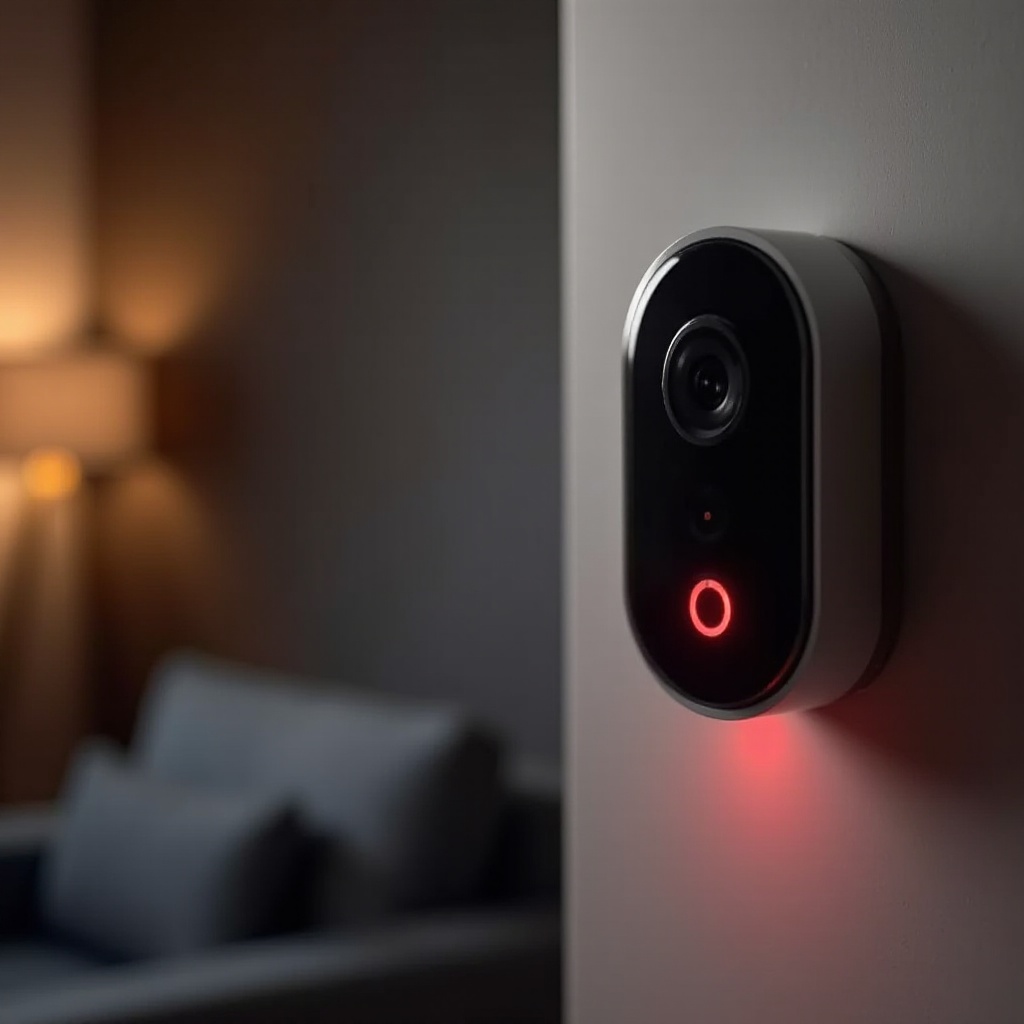
Understanding Eufy Status Lights and What a Blinking Red Light Means
Before you can fix a blinking red light, you need to understand what Eufy status LEDs are trying to tell you. Once you know the basic patterns, the red light becomes a clear signal instead of a mystery.
How Eufy Uses LED Colors to Show Device Status
Eufy uses small LEDs on cameras, doorbells, and bases to show device status at a glance. While the exact patterns vary by model, the core logic is similar:
- Blue typically indicates normal operation, a good connection, or a successful pairing.
- Red usually signals that the device needs attention, is in setup mode, or has hit an error.
- No light can mean the device is idle, in power‑saving mode, or completely off.
You can usually find a LED indicator or status light legend in the Eufy Security app or in the device manual. Checking the legend for your exact model helps you avoid trial and error.
Blinking Red vs. Solid Red vs. Other Colors
The color is only part of the story. The blink pattern and speed matter just as much:
- Slow blinking red often means the device is in setup or pairing mode, or trying to connect to Wi‑Fi or HomeBase.
- Fast blinking red can signal a failed connection, an error during setup, or a more serious fault that needs attention.
- Solid red may indicate an error, a reboot cycle, or on some models an active recording or live view.
Other common patterns include:
- Solid blue or blinking blue when the device is connected and working normally.
- Alternating red and blue when the device is updating firmware or performing certain pairing tasks.
Because behavior can differ from model to model, treat these patterns as guidelines and always confirm with the LED legend for your specific device.
When a Blinking Red Light Is Normal and When It Signals a Problem
A blinking red light is not always a sign of failure. It is completely normal when:
- You just powered on or reset the device and it entered setup mode.
- You changed your Wi‑Fi name, password, or router and the device is trying to reconnect.
- A firmware update started and the device is briefly unavailable while the update installs.
It becomes a problem when:
- The red light keeps blinking for more than a few minutes without changing pattern.
- The device shows offline in the Eufy Security app.
- Live view fails to load, or the device stops recording events.
- Other Eufy devices on the same network work fine, so the issue is isolated.
Now that you have a clear view of what the LED is trying to say, the next step is to understand the common reasons for a Eufy blinking red light so you can choose the right fix instead of reacting blindly.
Common Reasons Your Eufy Device Is Blinking Red
Most red light issues fall into a few predictable categories. When you know these common causes, you can troubleshoot in a structured way and avoid unnecessary resets or hardware changes.
Setup or Pairing Mode in the Eufy Security App
A blinking red light often means the device is in setup or pairing mode. You will see this when:
- You just unboxed and powered the device for the first time.
- You performed a factory reset using the reset button.
- You triggered pairing mode from the app or by holding a sync button.
In this state, the device is waiting for you to complete setup:
- Open the Eufy Security app.
- Tap Add Device.
- Select your model or scan the QR code if prompted.
- Follow the app steps to connect to Wi‑Fi or HomeBase.
If you do nothing, the device may time out and keep blinking red until you restart the pairing process.
Wi‑Fi or Network Connectivity Issues
Weak or unstable Wi‑Fi is one of the most common reasons for a Eufy blinking red light. The device may blink red when:
- It sits too far from the router or HomeBase.
- Thick walls, metal doors, or appliances block the signal.
- You changed routers, network names (SSID), or passwords.
- Your internet provider is having an outage or heavy congestion.
In the app, you might see:
- The device listed as offline.
- Live view that fails or buffers endlessly.
- Recorded events that do not upload or appear delayed.
Low Battery or Power Supply Problems
Power problems can also trigger a blinking red light.
For battery devices, the red LED can warn you that:
- The battery is critically low and needs charging.
- The device is shutting down or rebooting due to low power.
For wired devices such as doorbells and some cameras, a blinking red light can mean:
- The transformer voltage is too low.
- Wiring is loose, damaged, or corroded.
- The power adapter or outlet is faulty.
The Eufy app often backs this up with low battery alerts or power warnings.
Firmware Update or System Reboot in Progress
Sometimes the red light appears only while the device is updating or restarting. Typical signs include:
- The device recently downloaded new firmware through the app.
- The app displays an updating or restarting message.
- The LED cycles through red, blue, or turns off and on during the process.
In these cases, it is best to wait for a few minutes. Interrupting power or Wi‑Fi during a firmware update can create deeper problems.
Hardware Faults or Internal Errors
If none of the above apply, the blinking red light may point to a hardware issue:
- Component damage from a power surge or electrical fault.
- Physical damage from a drop or impact.
- Water ingress or long‑term exposure to harsh weather.
- Severe overheating inside the housing.
When hardware is at fault, software fixes may not solve the issue. Still, before assuming the worst, it is worth walking through structured troubleshooting to rule out simpler causes.
How to Fix a Eufy Camera Blinking Red Light Step by Step
If your camera shows a blinking red light, a methodical approach will help you solve the issue quickly and avoid missed steps. Start with basic checks, then move to network, firmware, and finally resets.
Step 1 – Confirm the Camera Model and LED Legend in the App
The first step is to confirm what your exact camera model considers a blinking red light. To do this:
- Open the Eufy Security app.
- Tap the gear icon for the affected camera.
- Find the Device Info, Model, or Help section.
- Check the LED indicator legend in the app or the user manual for that model.
Once you know the official meaning of blinking red for your camera, you can focus on the right cause instead of guessing.
Step 2 – Check Power: Battery Level, Cables, and Adapters
Power problems are easy to check and fix. For battery‑powered cameras:
- Open the app and check the battery level.
- If it is low, remove the camera and charge it until it reaches a healthy level.
- Use a reliable cable and charger, and check that the charging light or app status confirms charging.
For wired cameras:
- Confirm the power adapter is firmly plugged into both the camera and the outlet.
- Inspect the cable for cuts, kinks, or visible damage.
- Try a different outlet or adapter if you suspect a problem with the original one.
If the red light disappears after restoring stable power, you have likely found the root cause.
Step 3 – Test and Improve Wi‑Fi Signal Strength
If power looks fine, weak Wi‑Fi may still be behind the blinking red light. To test the signal:
- Stand near the camera with your phone.
- Connect to the same Wi‑Fi network the camera should use.
- Run a speed test or check how fast websites load.
- If performance is poor, move the router closer or adjust its position.
If your camera connects through HomeBase instead of directly to Wi‑Fi:
- Check that the HomeBase has a strong wired or Wi‑Fi connection.
- Move HomeBase closer to the camera to improve signal strength.
A better signal reduces connection drops and the red light should stop once the camera connects reliably.
Step 4 – Reconnect or Re‑Pair the Camera in the Eufy App
Sometimes the link between the app and the camera breaks, even if Wi‑Fi is fine. In that case, reconnecting or re‑pairing the camera helps:
- In the app, remove the camera from your device list if it will not reconnect.
- Press and hold the sync or reset button on the camera until the LED changes pattern to show pairing mode.
- Tap Add Device in the app and select your camera model.
- Follow the setup steps to connect it to Wi‑Fi or HomeBase again.
A successful pairing usually changes the LED from blinking red to blue or a steady status light.
Step 5 – Update Firmware and Restart the Device
Out‑of‑date firmware can cause unstable behavior and repeated red light warnings. To update:
- Open the device settings in the Eufy app.
- Look for Firmware or Device Update.
- If an update is available, start it while the camera has stable power and a good network connection.
- When the update finishes, restart the camera from the app or by unplugging and plugging it back in.
After the restart, check the LED again. If the blinking red light is gone and the app shows the camera online, you have likely solved the issue.
Step 6 – Factory Reset as a Last Resort
If the camera still blinks red after power, Wi‑Fi, and firmware checks, a factory reset may be necessary. Treat this as a last step because it erases custom settings such as zones and schedules.
To factory reset:
- Locate the camera’s reset button, often a small recessed button.
- Press and hold it for the duration recommended in the manual.
- Wait for the LED to show the reset pattern or for an audio prompt, depending on the model.
- Open the Eufy app and set up the camera again from scratch.
Once your camera is back online, you might still face a blinking red light on a doorbell. The next section continues the same structured approach, but tailored for doorbells, which have extra wiring and power considerations.
How to Fix a Eufy Doorbell Blinking Red Light (Battery and Wired)
Doorbells share many of the same red light causes as cameras, but they also bring unique challenges with wiring, transformers, and outdoor exposure. Understanding those differences will help you solve doorbell‑specific blinking red issues.
Diagnosing Battery vs. Wired Doorbell Red Light Patterns
Start by confirming the type of doorbell you have:
- Battery doorbell: Runs mainly on an internal battery, possibly with a trickle charge if wired.
- Wired doorbell: Relies on a transformer and doorbell wiring for power.
- Hybrid setup: Uses wiring to assist charging but can still run on battery.
Battery doorbells often blink red when:
- The battery is critically low.
- The doorbell has just entered pairing or setup mode.
Wired doorbells may blink red when:
- Incoming voltage from the transformer is too low.
- Wires are loose, reversed, or corroded.
Review the LED guide for your specific doorbell model to match the pattern correctly.
Checking Doorbell Transformer Voltage and Wiring
For wired or hybrid doorbells, power quality is crucial. To check it safely:
- Turn off power at the breaker to avoid electric shock.
- Remove the doorbell from its mount and inspect the wires.
- Look for loose screws, corroded contacts, or frayed insulation.
- Tighten any loose connections at the doorbell and at the chime, if a chime is used.
- If you have a multimeter and know how to use it, measure transformer voltage and confirm it matches Eufy’s recommended range.
If the transformer is too weak or damaged, replacing it with one that meets Eufy’s specs is often the only reliable fix. Once voltage is stable, the blinking red light caused by power issues should stop.
Re‑Pairing the Doorbell with HomeBase or Wi‑Fi
If wiring or battery levels look good, network communication might be the cause. To re‑pair the doorbell:
- Open the Eufy app and check if the doorbell shows as offline.
- Press and hold the doorbell’s sync or reset button until the LED enters pairing mode.
- In the app, tap Add Device and select your doorbell model.
- Follow the on‑screen instructions to connect it to Wi‑Fi or HomeBase.
A successful re‑pair should change the light from blinking red to a steady status light, often blue, and the doorbell should appear online in the app.
Fixing Chime and Notification Issues After the Red Light
Sometimes, after a red light issue, the doorbell appears online but the indoor chime or phone notifications do not work correctly. Check the following:
- In the Eufy app, open the doorbell settings and verify that your preferred chime (mechanical, digital, or wireless) is correctly selected.
- Make sure motion and ring notifications are enabled under Notifications.
- On your phone, allow notifications from the Eufy Security app and disable aggressive battery saving for that app.
Restoring these settings ensures your doorbell not only stops blinking red but also fully functions as part of your smart home system.
When the Doorbell Blinking Red Indicates Overheating or Weather Issues
Doorbells are exposed to sun, rain, and temperature swings. Some Eufy models may blink red if the device detects unsafe temperatures or moisture problems.
If you suspect weather or overheating issues:
- Check whether the doorbell sits in direct sun for long periods and consider adding shade.
- Make sure the mount allows some airflow and is not sealed in a way that traps heat.
- Look for condensation inside the lens or housing, which may indicate water ingress.
If you find signs of internal moisture or repeated overheating, contact Eufy support, as long‑term damage can occur. After solving doorbell‑specific issues, the next step is to strengthen your overall network and smart home setup to prevent red light problems from returning.
Network and Smart Home Tips to Prevent Future Red Light Problems
Once your devices work again, it is wise to fix the underlying network weaknesses that may have caused the blinking red light in the first place. A more stable network means fewer dropouts and fewer surprise warnings.
Optimizing Router Placement and 2.4 GHz Settings
Eufy devices typically work best on 2.4 GHz Wi‑Fi, which travels farther and through walls better than 5 GHz. To optimize your router setup:
- Place the router in a central, open location instead of a closet or behind metal objects.
- Keep it off the floor and away from thick concrete or brick walls when possible.
- If your router combines 2.4 GHz and 5 GHz into one network name, consider splitting them so you can connect Eufy devices to the 2.4 GHz band.
These changes can dramatically improve signal quality for cameras and doorbells at the edges of your home.
Using a Dedicated IoT Network or Guest SSID for Eufy Devices
Many modern routers support a guest or secondary SSID. Using one as a dedicated network for smart devices can make your setup more reliable and easier to manage.
You can:
- Create an IoT or guest SSID just for Eufy devices and other smart home gadgets.
- Keep heavy traffic devices like game consoles and streaming boxes on the main network.
- Use a simpler Wi‑Fi password on the IoT network if needed for compatibility, while keeping strong security on your main SSID.
Separating traffic reduces competition for bandwidth and often reduces random disconnections that can trigger a blinking red light.
Dealing with Interference from Other Smart Home Devices
The 2.4 GHz band can get crowded. Other devices can interfere with Eufy cameras and doorbells, including:
- Microwaves, cordless phones, and baby monitors.
- Bluetooth speakers and headsets near the router.
- Clusters of smart bulbs, plugs, or hubs all sitting in one place.
To reduce interference:
- Move competing devices a short distance away from the router.
- Avoid placing multiple wireless hubs directly next to each other.
- If your router supports channel selection, try a less crowded Wi‑Fi channel.
Mesh Wi‑Fi, Range Extenders, and HomeBase Positioning
Larger homes or those with thick walls may need more than a single router. In these cases:
- Consider a mesh Wi‑Fi system for consistent coverage throughout the house.
- Use a Wi‑Fi range extender near distant cameras or doorbells if a full mesh system is not an option.
- Place HomeBase in an open, central location relative to your Eufy devices, not tucked away in a far corner.
Improving your network backbone reduces the chance that you will see Eufy blinking red light problems due to simple distance or signal issues.
Proactive Maintenance for Reliable Eufy Cameras and Doorbells
Stopping a blinking red light once is important, but preventing it from coming back is even better. A few simple maintenance habits can keep your Eufy devices running smoothly over the long term.
Regularly Checking Battery Health and Charge Cycles
For battery‑powered cameras and doorbells, battery care matters a lot:
- Check battery levels in the Eufy app every few weeks.
- Try to recharge when levels drop to around 20–30% instead of waiting for 0%.
- If you use solar panels, keep them clean and ensure they get enough direct sun.
Healthy batteries reduce unexpected shutdowns and the red warnings that follow.
Keeping Firmware and the Eufy Security App Up to Date
Software updates often fix bugs that cause odd LED behavior or connection drops. To stay current:
- Enable automatic updates for the Eufy Security app on your phone.
- Periodically check for firmware updates in the app for cameras, doorbells, and HomeBase.
- Install updates when devices are on stable power and a good network connection.
Updated software gives your devices the best chance to avoid repeated blinking red issues.
Cleaning Lenses and Inspecting Outdoor Mounts
While dirt and loose mounts do not usually cause a blinking red light by themselves, they can lead to false alerts, overheating, or strain on the housing:
- Wipe lenses with a soft, dry cloth to keep images clear.
- Check outdoor mounts for cracks, loose screws, or damage from weather.
- Make sure devices are not pressed tightly against surfaces in a way that traps heat.
These simple checks help your devices operate within safe conditions.
Using App Health Checks and Status Notifications
The Eufy Security app offers useful status and health information that can warn you before problems become serious:
- Enable notifications for low battery, offline devices, and firmware updates.
- Review the device list from time to time to confirm everything shows online.
- Investigate any repeated offline events promptly instead of ignoring them.
By acting on these early warnings, you can often fix small issues before they show up as a constant Eufy blinking red light.
When to Contact Eufy Support or Replace Your Device
Even with careful troubleshooting, there are times when the blinking red light will not go away. At that point, it makes sense to involve Eufy support and consider repair or replacement options.
Signs the Blinking Red Light Is Caused by Hardware Failure
Hardware failure is more likely when you notice several of these signs together:
- The device keeps blinking red even with strong Wi‑Fi and stable power.
- Factory resets and full re‑pairing do not change the behavior.
- The device overheats, shuts down, or restarts frequently on its own.
- You can see physical damage, rust, or water stains on or inside the device.
In these situations, further software tweaks are unlikely to solve the problem.
Collecting Logs, Screenshots, and Error Codes for Support
Before contacting Eufy support, gather a bit of information so they can help you faster:
- Take screenshots of error messages, firmware versions, and device status in the app.
- Record a short video of the LED blinking pattern, if possible.
- Write down a brief timeline of when the issue started and what you have tried so far.
Sharing this with support gives them a clearer picture and helps them decide if a repair, replacement, or specific fix is needed.
Warranty, Replacement Options, and When to Upgrade
Finally, check your purchase details and Eufy warranty terms:
- Locate your proof of purchase and confirm the purchase date.
- Review the warranty coverage for your region and model.
- Ask support whether a repair or replacement is possible under warranty.
If your device is out of warranty, compare the cost of repair or replacement with the benefit of upgrading to a newer model that offers better range, smarter detection, or longer battery life. If you reach this stage, you have already done the right troubleshooting steps. Most Eufy blinking red light issues, however, resolve long before hardware replacement becomes necessary.
Conclusion
A Eufy blinking red light is a warning, not a disaster. It usually points to a clear issue: setup mode, weak Wi‑Fi, low power, an update in progress, or in rarer cases a hardware problem. By understanding Eufy’s LED patterns and using a structured troubleshooting process, you can restore your camera or doorbell quickly and confidently.
Start with simple checks: confirm your model’s LED legend, verify power and battery levels, and test Wi‑Fi strength. Re‑pair the device in the Eufy Security app, update firmware, and use a factory reset only when other steps fail. If the red light persists despite all efforts, Eufy support and warranty options are there to help.
Combine these practical fixes with better network planning and basic maintenance, and you will see the blinking red light far less often. Your Eufy smart home devices can then return to their main job: quietly protecting your home and keeping you informed without unnecessary alerts.
Frequently Asked Questions
Why is my Eufy camera blinking red but still recording normally?
A Eufy camera can blink red while it still records if the LED pattern indicates a minor warning rather than a full error. For example, the device may be trying to reconnect to Wi‑Fi, running on low but not critical battery, or briefly recovering from a network hiccup. Check the LED legend for your specific model and look at the device status in the Eufy Security app. If the camera shows online, live view works, and recordings appear as expected, the blinking red light is likely signaling a temporary or low‑level issue. You can still follow the power and Wi‑Fi checks in this guide to stop the light and prevent future problems.
Can I disable or hide the Eufy blinking red light for more privacy?
Some Eufy models let you dim or disable the status LED, which can help if you want a more discreet setup indoors or do not want to draw attention to an outdoor camera. To see if your device supports this, open the Eufy Security app, go to your device settings, and look for options such as ‘LED Indicator’, ‘Status Light’, or ‘Night LED’. You can usually lower brightness or turn the status light off completely. Keep in mind that infrared LEDs used for night vision may still glow faintly red and cannot always be disabled. Also, status LEDs are useful for diagnosing problems, so consider dimming rather than fully disabling them unless you have a strong privacy reason.
Why does my Eufy device keep blinking red even after I reset it?
If your Eufy device keeps blinking red after a factory reset, it often means an underlying issue remains: the device may still not reach Wi‑Fi or HomeBase, the transformer or power adapter may be insufficient, or the reset did not fully complete. In some cases, a persistent red light after a reset points to a hardware fault. Try these steps: confirm that your router or HomeBase has a strong, stable connection; make sure power is solid and within the recommended range; walk through the setup process again slowly in the Eufy Security app; and check for firmware updates if you can get the device online even briefly. If the LED never changes pattern and the device stays offline, gather screenshots and details, then contact Eufy support to discuss repair, replacement, or upgrade options.