
Nest Cam Flashing Blue: What It Means and How to Fix It
meta_title: Nest Cam Flashing Blue: Meaning, Causes & Fixes
meta_description: Nest Cam flashing blue? Learn what the blue light means, how to fix Wi‑Fi and setup issues, and keep your smart home camera secure and reliable.
title_en: Nest Cam Flashing Blue: Meaning, Causes & Fixes
Introduction
A Nest Cam flashing blue can be confusing and even a little unsettling, especially when it happens without warning. That small LED is the main way your camera talks to you, so when it starts blinking, it is signaling that something has changed in how the device is working.
Sometimes the blue light is completely normal, such as when the camera is in setup mode or reconnecting after a restart. At other times, it can point to Wi‑Fi problems, pairing errors, or unexpected streaming activity from another device in your home. If you do not know what each pattern means, you may waste time guessing or worry about security.
This guide explains what a Nest Cam flashing blue usually indicates, how to match the light you see with the status shown in the Google Home or Nest app, and the practical steps you can take to fix the problem. You will also learn how to prevent recurring issues and how to keep your smart home camera secure.
To make sense of the flashing blue light, the first step is to understand the different Nest Cam LED colors and patterns and what they say about your camera’s current state.
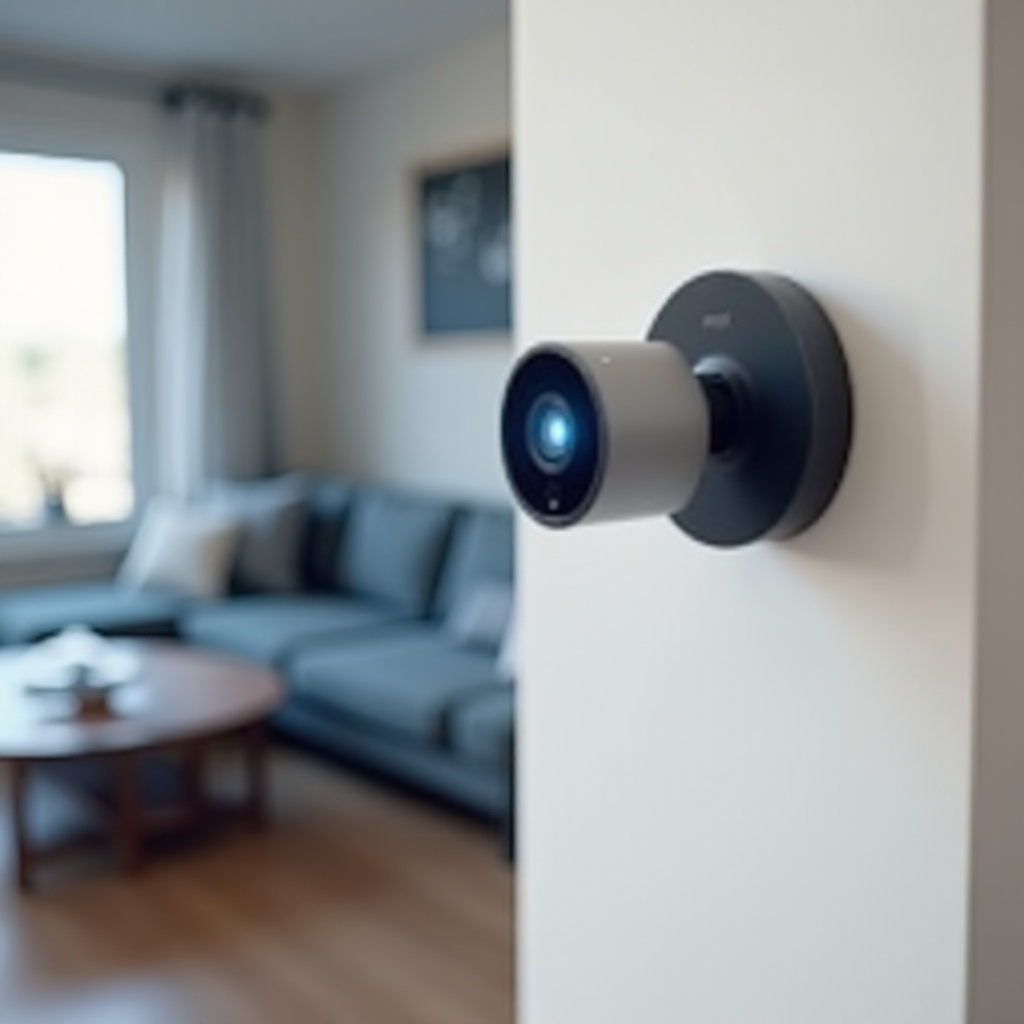
Understanding Nest Cam Light Colors
The LED on your Nest Cam is a simple but powerful status indicator. By changing color and pattern, it tells you whether the camera is ready, recording, updating, or struggling with an issue. Learning this basic LED language makes troubleshooting much easier.
These are the most common Nest Cam light colors and their usual meanings:
- Solid green – The camera is on and actively recording or streaming video.
- Solid blue – The camera is powered, starting up, or waiting to connect, often during initial setup.
- Flashing blue – The camera is in setup or pairing mode, or it is trying to connect to Wi‑Fi or a linked device.
- White (solid or pulsing) – The camera is booting, updating firmware, or processing a reset.
- Yellow or amber – There may be a warning, such as low power or a connection problem, depending on the model.
- Red – On some models, this can indicate a serious error or hardware failure.
Each Nest Cam model may have small differences, but a Nest Cam flashing blue almost always relates to setup, connectivity, or streaming activity. To interpret it correctly, you should always look at three things at the same time:
- The color (blue).
- The pattern (steady, rapid, slow, or pulsing).
- The status in the Google Home or Nest app (online, offline, connecting, or error).
Once you can connect the LED behavior to what the app shows, you get a clear picture of what your Nest Cam is trying to do. Now you can look more closely at what a flashing blue light usually means in real‑world scenarios.
What Does ‘Nest Cam Flashing Blue’ Actually Mean?
When your Nest Cam is flashing blue, it is not random. The camera is actively trying to complete a task and is informing you about it. Most of the time, the blue blinking points to one of these common situations:
-
Setup or pairing mode
When you first plug in a new Nest Cam or perform a factory reset, the camera enters setup mode. A flashing blue light means it is ready to be added to the Google Home or Nest app and is waiting for you to complete the process. -
Trying to connect to Wi‑Fi
If your Wi‑Fi network changed, or if the signal is weak where the camera is installed, the Nest Cam may blink blue as it repeatedly tries to reconnect. This often happens after you move the router, change the network name, or update your password. -
Connecting to another device
When a smart display, TV, or another device starts a live stream from your Nest Cam, the LED may flash blue to indicate active communication. This is usually normal and should stop after the stream ends. -
Updating firmware or running system tasks
Sometimes you will see blue as part of a firmware update or internal process. Updates should not take very long, and the pattern usually changes once the process finishes.
To confirm which of these applies, open the Google Home or Nest app while the blue light is flashing:
- Check whether the camera shows as ‘Offline’, ‘Connecting’, ‘Finishing setup’, or ‘Live’.
- Look for any error messages or update notifications.
By matching the LED behavior with the app status, you can narrow down the cause. Before you start changing settings or resetting anything, it helps to run through a few simple checks.
Quick Checks Before You Start Troubleshooting
A few basic checks can save a lot of time and often clear a Nest Cam flashing blue in just a couple of minutes. Before you try more advanced steps, make sure the essentials are in good shape.
Follow this quick checklist:
-
Confirm power and cabling
Make sure the camera is firmly plugged into a working outlet. Check the power adapter and cable for damage, kinks, or loose connections. If possible, try a different outlet or a known good adapter that meets the camera’s power rating. -
Check the app status
Open the Google Home or Nest app and tap on your camera. See whether it appears online, offline, or stuck on connecting. The app may display a specific error, such as a network problem or setup issue, which gives you a direct clue. -
Restart the camera
Unplug the camera for 10–15 seconds and then plug it back in. For battery models, use the power button if the device supports that method. After the restart, watch the LED and see if the flashing blue pattern changes. -
Check your Wi‑Fi and internet
Use another device, such as your phone or laptop, on the same Wi‑Fi network. If web pages are slow or fail to load, your router or modem may need a reboot. Fixing the network often fixes the Nest Cam at the same time.
If the camera still flashes blue after these quick checks, the next step is to consider whether the camera is stuck in setup mode or needs to be added again. That leads directly into the first major fix.
Fix 1 – Flashing Blue During Setup or Pairing
When you see a Nest Cam flashing blue right after unboxing it or after a reset, the most likely explanation is that it is in setup or pairing mode. The camera is ready and waiting for you to complete the setup steps in the app.
To complete setup and stop the flashing blue light:
-
Open the Google Home app
Make sure Bluetooth and Location are enabled on your phone, since the app may need them to detect the camera. Sign in with the Google account you want to use with your Nest Cam. -
Add the camera as a new device
Tap the ‘+’ icon in the top corner, choose ‘Set up device’, then select ‘New device’ and pick your home. The app should scan for nearby devices and find your Nest Cam, especially if the LED is already flashing blue. -
Scan the QR code
The camera or its quick start guide includes a QR code. When prompted, use your phone to scan it. If scanning fails, switch to manual entry and type the code shown on the device or in the documentation. -
Connect to Wi‑Fi
Select your home Wi‑Fi network and enter the password. Wait while the camera connects. This can take a short moment. When it succeeds, the app will usually confirm and move on to personalization options. -
Finish setup and name the camera
Give your camera a clear name, such as ‘Front Door’ or ‘Living Room’, and complete any remaining prompts. When setup is finished, the blue flashing should stop and the LED should switch to a normal state, such as solid green.
If the app cannot detect the camera or setup repeatedly fails:
- Move your phone closer to the Nest Cam.
- Toggle Wi‑Fi and Bluetooth off and on again on your phone.
- Restart the camera and repeat the setup steps.
When setup still fails, it is a strong sign that Wi‑Fi or network quality is part of the problem. The next fix focuses on connection issues that can keep your Nest Cam stuck flashing blue.
Fix 2 – Nest Cam Flashing Blue Because of Wi‑Fi Problems
Wi‑Fi issues are one of the most common reasons a Nest Cam keeps flashing blue. The camera may remember your network but cannot hold a stable connection, so it keeps trying to reconnect and signals that effort through the LED.
Work through these steps to solve Wi‑Fi related blue flashing:
-
Test Wi‑Fi strength near the camera
Stand near the camera with your phone connected to the same Wi‑Fi network. Load a few web pages or run a speed test. If your phone has trouble staying connected or feels very slow, the camera likely has an even weaker signal. -
Reboot your router and modem
Unplug your modem and router. Wait about 30 seconds, then plug the modem back in first. After it fully starts, plug the router back in. Give the network a few minutes to stabilize, then check the Nest Cam again. -
Adjust camera or router placement
If possible, move the camera closer to the router or a mesh Wi‑Fi node. Avoid placing the camera behind thick walls, near heavy appliances, or next to large metal objects, as these can block or weaken the signal. -
Check Wi‑Fi bands and network names
Many routers broadcast both 2.4 GHz and 5 GHz networks. Nest Cams often connect more reliably to 2.4 GHz for better range. If your router uses separate network names for each band, try connecting your camera to the 2.4 GHz network. -
Reconnect the camera to Wi‑Fi in the app
Open your camera settings in the Google Home or Nest app. Look for Wi‑Fi or network options. Forget the current network and connect again, making sure the password is correct.
If the Nest Cam stops flashing blue and appears online after these steps, you have likely resolved a Wi‑Fi stability issue. But if the blue light shows up during or after active use, the cause could be streaming or updating rather than basic connection problems.
Fix 3 – Blue Light While Streaming or Updating
A Nest Cam flashing or pulsing blue during everyday use can still be normal. When your camera talks to other devices or downloads updates, the LED often changes to show that it is busy.
You might notice blue flashing in these common situations:
- Someone starts a live view from the Google Home or Nest app.
- A Google Nest Hub, smart display, or Chromecast shows the camera feed.
- The camera is downloading and installing a firmware update.
To handle blue flashing related to streaming or updates:
-
Check who is streaming the camera
Open the app and see if a live view is currently active. Ask other people in your home if they started the camera on a smart display or TV. If so, the blue flashing is simply indicating active streaming. -
Stop the stream
Close the live view in the app and stop any casting to TVs or displays. After the stream stops, watch the camera’s LED. It should return to its normal state within a short time if everything is working correctly. -
Confirm update status
In the camera settings, check for information about software or firmware. If the app mentions an update, give the camera a few minutes to complete it. Avoid unplugging the device mid‑update unless it is clearly stuck. -
Restart the camera after a long flashing period
If the Nest Cam has been flashing blue for an unusually long time and the app does not show an active stream or update, reboot the camera. Unplug it, wait 10–15 seconds, and plug it back in. See if the light returns to a normal pattern.
When the blue flashing is tied to streaming or updates, it should resolve itself once the task ends. However, if your camera stays stuck flashing blue even after you stop streams and fix Wi‑Fi issues, a factory reset may be the best way to clear deeper software glitches.
Fix 4 – Factory Resetting a Nest Cam That Will Not Stop Flashing Blue
A factory reset is a strong but effective step when a Nest Cam flashing blue refuses to return to normal. Resetting removes the camera from your configuration and restores it to its original state, which can fix corrupted settings or incomplete updates.
Consider a factory reset if:
- The camera remains in a flashing blue state for a long time with no change.
- The app cannot detect the camera during setup, even with strong Wi‑Fi and correct power.
- Prior restarts and Wi‑Fi fixes had no effect.
Follow these general steps (always confirm details for your specific model):
-
Remove the camera from the app
Open Google Home or the Nest app, select your camera, go to Settings, and choose ‘Remove device’ or a similar option. Confirm removal. -
Locate the reset button
Find the physical reset button on your Nest Cam. It is often on the back, bottom, or near the power connection. Some models use the main button for reset. -
Perform the factory reset
Press and hold the reset button for the time listed in the user guide, often around 10–15 seconds. The LED should change color or pattern, and some models play a sound to confirm the reset has started. Release the button when indicated. -
Wait for the reboot and setup mode
After the reset, the camera reboots. When it is ready, the LED usually returns to a flashing blue pattern that indicates setup mode. At this point, you can repeat the setup process described in Fix 1.
A factory reset often clears stubborn software problems. If your Nest Cam still flashes blue after a clean reset and new setup, it is time to look beyond software and connection issues and think about privacy, security, and possible hardware faults.
Security & Privacy: Flashing Blue When You Are Not Using the Camera
A Nest Cam flashing blue when you are not setting it up, not streaming, and not changing anything can raise a serious concern. You may wonder whether someone else is connecting to the camera or whether your account or network has been compromised.
Treat unexplained flashing as a prompt to check security:
-
Review recent camera activity
Open the Google Home or Nest app, select your camera, and check the event history. Look for unexpected live view sessions or unusual times when the camera was accessed. -
Check home members and shared access
In your home settings, review the list of people who have access to your smart home. Remove anyone you do not recognize or no longer want to share access with. Make sure only trusted users can view or control the camera. -
Secure your Google account
Change your Google account password to a strong, unique one that you do not use elsewhere. Turn on two‑step verification to add an extra layer of security. Then visit the account security page and remove any unfamiliar devices or sign‑ins. -
Harden your Wi‑Fi network
Log in to your router settings and confirm that you use WPA2 or WPA3 encryption. Change your Wi‑Fi password if you suspect it has been shared or guessed. Avoid simple passwords or open networks that let anyone connect. -
Review linked smart devices
Check which smart displays, speakers, and TVs are linked to your Google account. Remove anything you do not own or recognize. This limits the number of places that can start a live view from your Nest Cam.
By tightening access and security, you not only respond to the unexplained flashing blue light but also protect your smart home more broadly. Once security looks solid, it makes sense to focus on preventing technical issues that cause repeat connection problems.
Preventing Future ‘Nest Cam Flashing Blue’ Issues in Your Smart Home
You can reduce how often you see a Nest Cam flashing blue by designing a more stable, organized smart home setup. Reliable Wi‑Fi, good placement, and clear access rules all help your camera work smoothly day after day.
Use these prevention tips to improve long‑term reliability:
-
Optimize camera placement
Install the camera where it has strong Wi‑Fi coverage. Avoid corners with thick walls, high interference areas near large electronics, and direct exposure to harsh weather for outdoor models. Good placement supports a steady connection and fewer reconnect attempts. -
Strengthen your home network
If you have many smart devices, consider upgrading to a more powerful router or a mesh Wi‑Fi system. Place mesh nodes so they cover each camera location well. Updated network hardware often solves frequent disconnects that cause blue flashing. -
Keep devices and apps updated
Allow automatic updates for the Google Home or Nest app when possible. Keep your phone’s operating system up to date, and install router firmware updates when your router’s manufacturer releases them. Newer software usually handles smart devices more reliably. -
Plan device capacity
Count all the devices on your network: cameras, phones, laptops, TVs, smart speakers, and more. Make sure your internet plan and router can handle the combined traffic, especially if you use multiple Nest Cams at high resolution. -
Document key settings
Write down your Wi‑Fi network name, password, and router login details and store them in a safe place. Keep notes on where each camera is installed, how it is powered, and any special settings you applied. Clear documentation makes future troubleshooting and upgrades much easier.
When you build a stronger foundation for your smart home, you lower the risk that your Nest Cam will get stuck flashing blue due to avoidable issues like weak Wi‑Fi or misconfigured access. Still, there are times when hardware problems or rare faults make support the best option.
When to Contact Google Nest Support or Replace Your Camera
Most of the time, you can resolve a Nest Cam flashing blue by handling setup, Wi‑Fi, or streaming issues. But if you have tried all the steps above and nothing changes, there may be a deeper problem with the camera or its internal software.
Consider contacting Google Nest support when:
- The camera stays in a flashing blue state even after a full factory reset and fresh setup attempt.
- The Google Home or Nest app cannot detect the camera at all, despite strong Wi‑Fi and proper power.
- The LED shows unusual or mixed patterns that do not match official support information for your model.
- The camera overheats, shuts down unexpectedly, or shows signs of physical damage.
Before you reach out to support, gather some useful details:
- Your Nest Cam model name and approximate purchase date.
- A clear list of the troubleshooting steps you already tried, such as restarts, Wi‑Fi changes, and factory resets.
- Screenshots or notes of any error messages from the app.
If your device is still under warranty, Google Nest support may offer repair or replacement options. Even if it is out of warranty, support can confirm whether the flashing blue light signals a failure that makes replacement the most practical choice.
Once you know whether the camera can be fixed or should be replaced, you can make a confident decision and keep your smart home monitoring system running smoothly.
Conclusion
A Nest Cam flashing blue is more than just a blinking light. It is a clear signal that your camera is trying to set up, reconnect, stream, or update. When you know how to read that signal and match it with what the Google Home or Nest app shows, troubleshooting becomes faster and far less stressful.
You have seen how to interpret the different LED colors, run quick checks on power and Wi‑Fi, complete setup properly, and fix common connection issues. You have also learned how streaming and updates can cause temporary blue flashing, how a factory reset can clear deeper glitches, and why it is important to review account and network security when you notice unexpected activity.
If you reach the point where the Nest Cam keeps flashing blue despite all these steps, contacting Google Nest support with clear information helps you get a reliable answer and, if needed, a replacement. With a stable network, good placement, and strong security, you can turn a confusing flashing blue light into a short, manageable fix instead of a long‑term frustration.
Frequently Asked Questions
Why is my Nest Cam flashing blue and not connecting to Wi‑Fi?
A Nest Cam flashing blue and failing to connect to Wi‑Fi usually means the camera is stuck in setup or reconnection mode. Common triggers include weak signal at the camera’s location, an incorrect Wi‑Fi password, or router issues after you move or change network equipment. Move the camera closer to the router, reboot your modem and router, and then reconnect the camera to the correct network in the Google Home or Nest app. If that still does not work, remove the camera from the app, perform a factory reset, and run through a fresh setup.
Can I turn off the blue light on my Nest Cam without disabling the camera?
Most Nest Cam models let you adjust the status LED in the Google Home or Nest app. Open your camera settings and look for a ‘Status light’ or LED option. You can usually dim the light or turn it off completely. The camera will keep working and recording based on your settings even if the LED is off. Just remember that disabling the light makes it harder to tell at a glance when the camera is active, and some people prefer to keep the LED on as a visible privacy indicator.
Is a flashing blue light on my Nest Cam a sign that someone hacked my camera?
A flashing blue light does not automatically mean your Nest Cam has been hacked. In many cases, it simply indicates setup, Wi‑Fi reconnection, or active streaming from a phone, smart display, or TV. However, if the camera flashes blue when you are not using it and you cannot explain the activity, you should take security steps. Check your camera history, review who has access to your Google home, change your Google account password, enable two‑step verification, and update your Wi‑Fi password. These actions help protect against unauthorized access and give you more control over who can view your camera.