
How to Connect an onn. Soundbar to Your Roku TV via Bluetooth (Step-by-Step 2024 Guide)
Introduction
onn soundbar Bluetooth pairing to Roku TV can feel confusing when menus, models, and features do not match the basic paper instructions. You plug everything in, expect a big sound upgrade, and instead you are stuck with quiet TV speakers or a soundbar that refuses to appear in the Bluetooth list.
This guide walks you through the complete process in a practical, user-friendly way. You will learn how to:
- Check if your Roku TV and onn. soundbar truly support Bluetooth pairing
- Put both devices into the correct mode so they can discover each other
- Pair the soundbar to the TV using clear, step-by-step instructions
- Fix issues like ‘connected but no sound’, lag, or audio dropouts
- Know when Bluetooth is fine and when HDMI ARC or optical is a better choice
By the end, you will know exactly how to connect your onn. soundbar to your Roku TV via Bluetooth, how to tune the audio settings for better sound, and how to keep the setup stable over time.
Check Compatibility Before Pairing
Before you spend time on troubleshooting, make sure your devices can actually do what you want. Not every Roku TV supports standard Bluetooth audio output, and not every onn. device that includes Bluetooth works with a TV in the same way it works with a phone.
Confirming compatibility first helps you avoid chasing problems that settings alone cannot fix. Once you know your Roku TV and onn. soundbar can work together over Bluetooth, you can focus on preparing the TV for a clean pairing process.
Confirm Your Roku TV Supports Bluetooth Audio
Start with your Roku TV model number. You can find it:
- On a label on the back of the TV
- Inside the menu under: Settings > System > About
After you have the model number, check these points:
- Does the TV support Bluetooth audio output, or only ‘private listening’ through the Roku mobile app?
- Does it allow Bluetooth connections to generic speakers and soundbars, or only to Roku Wireless Speakers and Roku-branded soundbars?
Many Roku TVs in 2024 support Bluetooth for headphones or phones, but they do not always support third-party soundbars as Bluetooth outputs. If your TV only mentions private listening or mobile app pairing, then standard Bluetooth pairing to an onn. soundbar may not be possible without extra hardware.
Identify Your onn. Soundbar Model and Bluetooth Features
Next, inspect your onn. soundbar so you know what it can do. You should:
- Check the model number on the back, underside, or side panel
- Review the quick-start guide or search the exact model online
- Confirm that the soundbar has Bluetooth input for receiving audio, not just some limited function
Most recent onn. 2.0, 2.1, and 5.1 soundbars have Bluetooth that lets them receive audio from phones, tablets, and TVs. A few very basic models may have different behavior or pairing steps, so knowing your model helps you follow the right process.
When You Need a Workaround or Alternative Connection
If your Roku TV does not support standard Bluetooth audio to third-party speakers, you still have reliable options for better sound:
- Use HDMI ARC for a direct digital audio connection and volume control with the TV remote.
- Use optical (TOSLINK) if ARC is unavailable or unstable.
- Add a Bluetooth transmitter to your TV's optical or headphone output, then pair the onn. soundbar to that transmitter.
Once you know which connection types are possible, the next step is to prepare your Roku TV so that Bluetooth pairing, if supported, works as smoothly as possible.
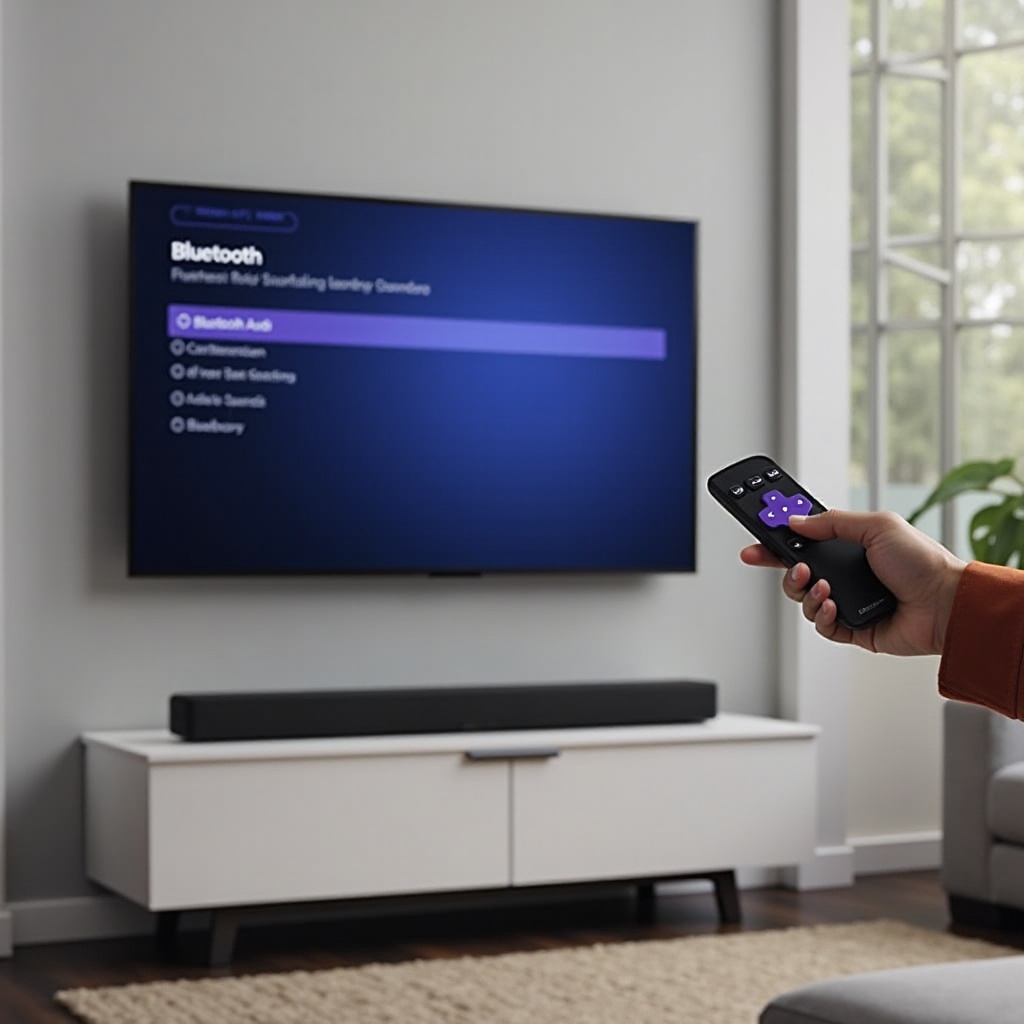
Prepare Your Roku TV for Bluetooth Pairing
After confirming compatibility, you should set up your Roku TV for a stable connection. A quick software update, a few menu checks, and a restart can prevent many pairing problems before they start.
Preparing the TV also makes it easier to decide later whether Bluetooth gives you the performance you want or whether you should move to HDMI ARC or optical.
Update Your Roku TV Software to the Latest Version
Outdated Roku software is one of the most common sources of Bluetooth and audio bugs. To update your TV:
- Go to Settings > System.
- Select System update.
- Choose Check now and wait for the TV to scan.
If an update is available, install it and allow the TV to restart completely. Newer Roku OS releases often contain fixes for audio dropouts, Bluetooth stability, and compatibility with different devices.
Enable Bluetooth or Wireless Audio Settings on Roku TV
Next, open your audio and device settings to verify the right options are enabled:
- Go to Settings from the Roku home screen.
- Select Remotes & devices (or a similar label on your model).
- Look for Bluetooth devices, Wireless speakers, or Audio devices.
Depending on your Roku model and OS version:
- Enable any option related to Bluetooth or wireless audio output.
- Make sure the TV speakers are not locked as the only audio device.
If the only Bluetooth-related option is private listening via the mobile app, then your Roku TV likely does not support direct pairing with third-party Bluetooth soundbars. In that situation, a Bluetooth transmitter or a wired connection to your onn. soundbar is usually the best route.
Restart Roku TV to Clear Minor Glitches
Once you change settings or install updates, restart the TV to clear temporary glitches:
- Go to Settings > System > Power.
- Select System restart and confirm.
A fresh restart helps the TV detect and manage Bluetooth devices more reliably. With the TV ready, the next focus is on putting your onn. soundbar into the correct pairing mode.
Put Your onn. Soundbar into Bluetooth Pairing Mode
Your Roku TV cannot connect to the onn. soundbar unless the soundbar is actively ready to pair. This step is easy to miss, especially if the soundbar is still trying to reconnect to a phone or another device.
By understanding the buttons and indicator lights on the soundbar, you can be sure it is visible to your Roku TV when you start the pairing process.
Locate the Bluetooth or Pair Button on the Soundbar
Carefully inspect your onn. soundbar and remote:
- Look for a Bluetooth icon or a button labeled 'BT' on the soundbar itself.
- Check the sides or back for a small 'Pair' button.
- Check the remote; some onn. soundbar remotes have a dedicated Bluetooth or source button.
A typical pairing sequence looks like this:
- Turn on the soundbar and ensure it is not muted.
- Press the Bluetooth or Pair button once, or hold it for a few seconds.
- Watch for an LED light that changes color or starts blinking.
If you still have the manual, confirm the exact button behavior for your model so you know when pairing mode is active.
Understand LED Indicators and Pairing Signals
Most onn. soundbars use a simple LED system to show Bluetooth status:
- Solid light: The soundbar is connected to a Bluetooth device.
- Slow blinking: Bluetooth mode is active but not in pairing mode.
- Fast blinking: The soundbar is in pairing mode and ready for a new connection.
Put the soundbar into the fast-blinking pairing mode just before you search for devices from your Roku TV. This timing makes it more likely that the TV finds and connects to the soundbar quickly.
Reset Bluetooth on the Soundbar if Pairing Fails
If the soundbar will not enter pairing mode or seems to connect to the wrong device, clear its Bluetooth memory:
- Unplug the soundbar from power for 30 to 60 seconds.
- Plug it back in and turn it on.
- Press and hold the Bluetooth or Pair button for 10 to 15 seconds, if your model uses a long-press reset.
Resetting Bluetooth is important when the soundbar is still trying to auto-connect to a phone, tablet, or older TV. Once you have a clean pairing mode, you can move on to the main pairing steps on your Roku TV.
Step-by-Step: Pairing onn. Soundbar to Roku TV
At this point, your Roku TV is updated and ready, and your onn. soundbar is in pairing mode. Now you will connect the two devices using the Roku menus.
Follow the steps in order and keep the soundbar close to the TV to reduce any pairing problems. Once the devices are connected, you can focus on fine-tuning the audio settings.
Open the Roku TV Bluetooth or Audio Devices Menu
Use your Roku TV remote to reach the pairing screen:
- Press Home on the remote.
- Go to Settings.
- Select Remotes & devices, Audio, or a similar menu, depending on your model.
- Look for a section such as Bluetooth devices, Wireless speakers, or Pair Bluetooth device.
The exact labels may vary, but your goal is to open a screen that lets the TV scan for nearby Bluetooth audio devices.
Scan for Devices and Select Your onn. Soundbar
With the soundbar still in pairing mode (fast blinking LED):
- Start a scan or search for new devices on the Roku TV.
- Wait several seconds for the TV to detect nearby Bluetooth devices.
- Look for a device name that matches your onn. soundbar model or a generic label such as 'onn. Soundbar' or 'onn. Audio'.
- Highlight the onn. soundbar entry and press OK on the remote.
The TV should attempt to pair and connect. If the TV prompts you to confirm pairing, accept on the TV. The soundbar's LED should change from fast blinking to solid or slow blinking, indicating a successful connection.
Confirm the Connection and Test Audio from Apps
After pairing completes:
- Press Home to return to the Roku main screen.
- Open a streaming app such as Netflix, YouTube, or a free Roku Channel.
- Play any video and gradually increase the volume using the TV remote.
You should now hear audio through the onn. soundbar. If both the TV speakers and soundbar are playing at the same time, you will adjust that in the audio settings next. Once you confirm that sound reaches the soundbar, you can focus on optimizing audio quality and sync.
Optimize Roku TV Audio Settings for Better Sound
A basic Bluetooth connection is only the first step. To get clear dialogue, balanced volume, and smoother performance, you should adjust a few Roku TV audio options.
Tuning these settings helps you decide whether Bluetooth meets your needs or whether a wired connection like HDMI ARC or optical would provide a noticeable upgrade.
Set Your Default Audio Output to the onn. Soundbar
Tell the Roku TV to send sound to the soundbar by default:
- Go to Settings > Audio.
- Look for Audio output or Speakers.
- Select the Bluetooth or external speaker option that matches your onn. soundbar.
This change prevents the TV from reverting to its built-in speakers every time it restarts or when you switch inputs. On some models, the TV may still fall back to internal speakers if the Bluetooth connection drops, so recheck this setting if you lose sound.
Adjust Volume Leveling, Night Mode, and Speech Clarity
Roku TVs include useful audio modes that help control loudness and clarity:
- Volume leveling: Reduces sudden jumps in volume between scenes or channels.
- Night mode: Softens loud effects and bass so you can watch without disturbing others.
- Speech clarity or dialog enhancement (if available): Boosts voices so dialogue stands out.
To adjust these features:
- Go to Settings > Audio > Volume modes or Sound settings.
- Test Leveling and Night modes to see which fits your viewing habits.
- Turn on any Speech or Dialog enhancement feature if your TV offers one.
These settings can make a big difference with a budget soundbar, especially in rooms with background noise or at low listening levels.
Fix Lip-Sync Delay and Audio Lag over Bluetooth
Bluetooth sometimes adds a small delay between picture and sound. If you notice that lips do not match the words:
- Open Settings > Audio on your Roku TV.
- Look for an Audio delay or Lip-sync adjustment option.
- Change the delay in small steps while watching a clip with people speaking.
- Stop when the voices and mouth movements appear in sync.
If you cannot find a balance that feels right, that is a strong sign that Bluetooth is not ideal for fast content or gaming. In that case, HDMI ARC or optical will usually deliver tighter sync and more consistent performance.
Fix Common Bluetooth Pairing Problems
Even with careful setup, onn soundbar Bluetooth pairing to Roku TV can still run into a few common problems. Most issues fall into predictable patterns, and you can usually fix them in minutes.
Addressing these problems also helps you decide whether you should keep using Bluetooth or switch to a wired connection for long-term reliability.
onn. Soundbar Not Showing in Roku TV Device List
If your Roku TV cannot see the onn. soundbar when scanning:
- Confirm the soundbar is in active pairing mode with a fast blinking LED.
- Move the soundbar closer to the TV for the first connection attempt.
- Turn off Bluetooth on nearby phones, tablets, or laptops that might auto-connect to the soundbar.
- Restart both the TV and soundbar, then run the scan again.
If the onn. soundbar never appears, your Roku TV might not support pairing to third-party Bluetooth speakers. In that case, using a Bluetooth transmitter or switching to HDMI ARC or optical is usually the best solution.
Connected but No Sound from the Soundbar
If the Roku TV shows the soundbar as connected but nothing plays:
- Check that the onn. soundbar volume is turned up and not muted.
- Verify that the Roku audio output is set to Bluetooth or external speakers in Settings > Audio.
- Try another app or channel to rule out app-specific issues.
- Disconnect and re-pair the soundbar from the Roku Bluetooth menu.
Also check that no other Bluetooth audio device, such as wireless headphones, is taking priority. Once the soundbar is the main output device, you should hear TV audio through it consistently.
Audio Cutting Out, Dropping, or Distorting
If the audio plays but cuts out, drops connection, or sounds distorted:
- Keep the soundbar within a clear line of sight and close distance to the TV.
- Move Wi-Fi routers, game consoles, and other electronics slightly away from the TV and soundbar.
- Reduce the number of active Bluetooth devices near the TV, especially if they are streaming audio.
- Restart both the Roku TV and onn. soundbar and test again.
If interference persists, it may be due to your room layout or crowded wireless environment. In that situation, a wired option like HDMI ARC or optical will almost always be more stable than Bluetooth.
When to Use HDMI ARC or Optical Instead of Bluetooth
Bluetooth offers convenience and a clean look, but it is not always the best connection for TV audio. If you watch a lot of action, sports, or play games, you may notice lag or dropouts more than casual viewers.
Understanding the strengths of HDMI ARC and optical helps you decide whether to stay with Bluetooth or upgrade your connection for better performance.
Pros and Cons of Bluetooth for TV Sound
Bluetooth has clear benefits:
- No extra cable between the TV and soundbar, which keeps your setup tidy.
- Easy to move or reposition the soundbar without rewiring.
- Simple pairing with phones and tablets for music playback.
But it also has trade-offs:
- Possible audio lag, especially noticeable in games and fast sports.
- Susceptible to interference from routers, microwaves, and other wireless devices.
- Limited or no support on some Roku TVs for third-party Bluetooth soundbars.
If these drawbacks bother you, a wired digital connection gives you more consistent results.
Benefits of HDMI ARC for Stable Audio
HDMI ARC, or Audio Return Channel, is often the best choice if your TV and onn. soundbar support it:
- One HDMI cable carries audio from the TV to the soundbar.
- Many setups let you control the soundbar volume with the Roku TV remote.
- Latency is usually lower than Bluetooth, which reduces lip-sync issues.
To use HDMI ARC:
- Plug one end of an HDMI cable into the TV's HDMI ARC port.
- Plug the other end into the HDMI ARC or HDMI OUT (ARC) port on the soundbar.
- Enable ARC and CEC in the TV's audio and system settings.
- Select the proper input on the soundbar if needed.
If your onn. soundbar and Roku TV support ARC, this setup often provides the best mix of simplicity, reliability, and sound quality.
Using Optical Audio as a Reliable Backup Option
If HDMI ARC is not available or does not behave reliably, you can use an optical cable instead:
- Connect an optical (TOSLINK) cable from the TV's optical output to the soundbar's optical input.
- Set the TV audio output to 'Optical' or 'Digital audio out' in Settings.
- Choose the optical input on the soundbar.
Optical gives you a stable digital connection that avoids Bluetooth interference and lag. You might not get volume control through the TV remote on every model, but the trade-off is very consistent audio performance.
Tips to Keep Your onn. Soundbar and Roku TV Running Smoothly
Once you have chosen your connection method and completed onn soundbar Bluetooth pairing to Roku TV or a wired setup, a little care can keep everything working well. Regular updates, good placement, and basic interference control will help your system sound its best.
These habits apply whether you stay with Bluetooth or move to HDMI ARC or optical later.
Update Firmware and Apps Regularly
Make a simple routine to keep things current:
- Check for Roku system updates every few weeks in Settings > System > System update.
- Allow your streaming apps to update so they remain compatible with audio changes.
- If your onn. soundbar supports firmware updates via USB or an app, install them when available.
Updated software often fixes bugs and improves compatibility, so keeping both devices current reduces future problems.
Position the Soundbar for Clear and Balanced Sound
Placement affects sound quality more than many people expect. For the best results:
- Place the soundbar directly under or just in front of the TV.
- Keep it centered so left and right channels sound balanced.
- Avoid blocking the speaker grille with decorations, shelves, or the TV stand.
- If your soundbar includes a subwoofer, place it near a wall or corner to reinforce bass.
Good placement helps dialogue and effects sound clearer, even with a budget soundbar.
Minimize Wireless Interference in Your Room
If you use Bluetooth, controlling interference is key to a stable connection:
- Do not place the router directly on top of or behind the soundbar.
- Keep microwave ovens, cordless phones, and similar devices a bit away from the TV wall.
- Limit the number of devices that stream audio over Bluetooth near the TV at the same time.
These small adjustments can make your Bluetooth connection more reliable and reduce random dropouts.
Conclusion
onn soundbar Bluetooth pairing to Roku TV does not have to be a frustrating guessing game. When you confirm compatibility, update the Roku software, place the onn. soundbar in clear pairing mode, and follow a structured pairing process, you can achieve a stable wireless setup for everyday streaming.
If you run into persistent issues such as the soundbar not appearing, 'connected but no sound', or noticeable audio lag, those signs often point to limits in Bluetooth support or heavy wireless interference. In those situations, HDMI ARC or optical gives you a more stable and responsive connection while still letting your onn. soundbar deliver a strong upgrade over built-in TV speakers.
With a bit of setup and fine-tuning, your onn. soundbar and Roku TV can work together as a straightforward, budget-friendly home theater system that looks clean and sounds much better than the default TV audio.
Frequently Asked Questions
Why won’t my onn. soundbar appear in my Roku TV Bluetooth list?
Your Roku TV may not support standard Bluetooth audio to third-party soundbars, or the onn. soundbar might not be in active pairing mode. First, check your Roku model in Settings > System > About and confirm that it supports Bluetooth audio output beyond private listening. Then put the soundbar into pairing mode by pressing and holding its Bluetooth or Pair button until the LED blinks quickly. Move the soundbar close to the TV, turn off Bluetooth on nearby phones that might auto-connect, and scan again. If the soundbar still does not appear, use a Bluetooth transmitter or a wired HDMI ARC/optical connection instead.
Can I connect multiple Bluetooth devices to my Roku TV while using an onn. soundbar?
Most Roku TVs can remember several Bluetooth devices but usually send audio to only one at a time. You can pair both headphones and an onn. soundbar with the TV, but you will switch between them in the Bluetooth or audio settings. When the soundbar is active, the TV will route audio there and pause output to other Bluetooth devices. If you try to use two Bluetooth audio outputs at once, the TV will typically prioritize one device or fall back to its internal speakers, depending on your model and settings.
Is Bluetooth good enough for movies and gaming, or should I use HDMI ARC instead?
Bluetooth is often good enough for casual movie watching, shows, and background listening, especially if you do not notice lip-sync issues. However, for fast-paced gaming, live sports, or action content, HDMI ARC or optical usually performs better. Wired connections reduce audio lag, avoid wireless interference, and provide more consistent sound. If you see that speech does not match lip movement or you often get audio dropouts with Bluetooth, switching to HDMI ARC is the best way to improve responsiveness and reliability.